Self-Host Your Own Cold-Chain Server in 30 min
Welcome to the ultimate open-source IoT monitoring kit. You no longer need to pay monthly subscriptions or rely on corporate clouds to monitor your refrigerators, freezers, or cold rooms.
With this guide, you will deploy a 100% free Django server on PythonAnywhere, generate custom C++ firmware for ESP32 / ESP8266 / Pico W, and monitor your telemetry via our Windows Desktop App or Mobile Web App.
It's fast, it's secure, and it's yours.
Part 1: Server Setup (PythonAnywhere)
Create a PythonAnywhere Account
PythonAnywhere is a cloud hosting platform that gives you a free virtual environment. We are going to use their "Beginner" (Free) plan. It is powerful enough to handle hundreds of temperature readings per day.
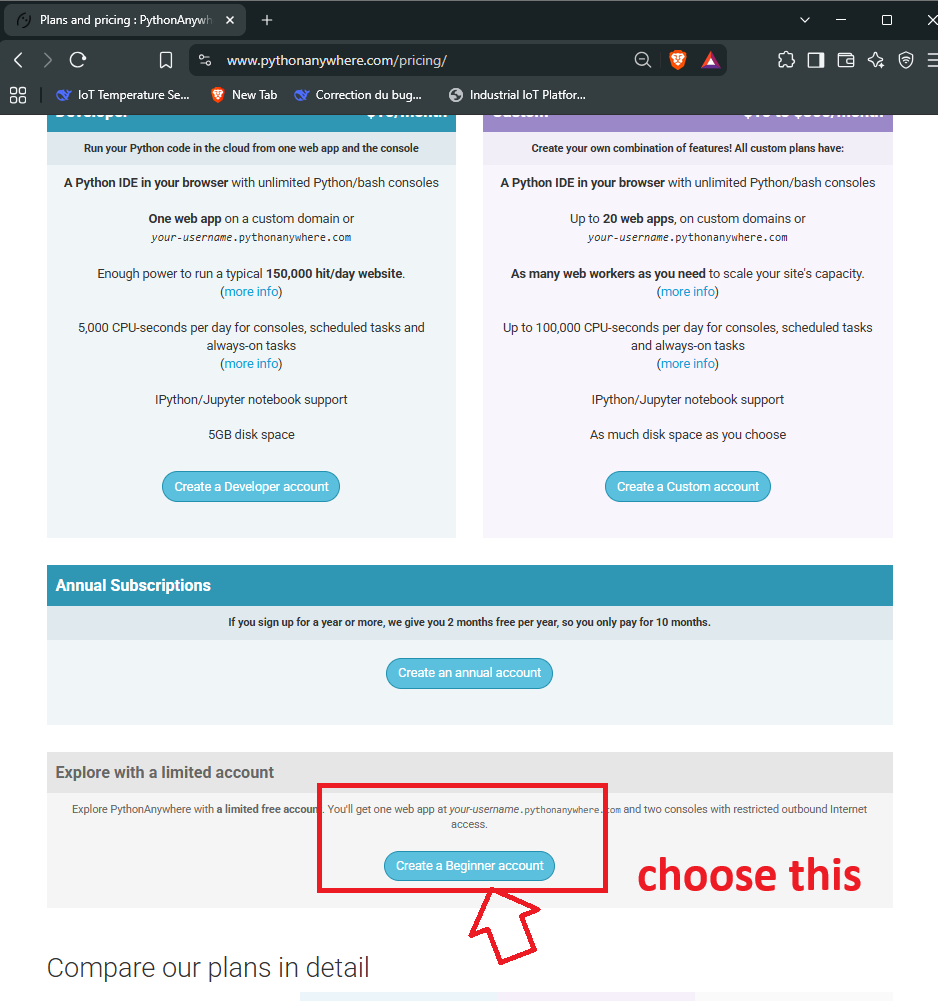
Go to pythonanywhere.com and click on "Pricing & signup". Choose the Beginner plan.
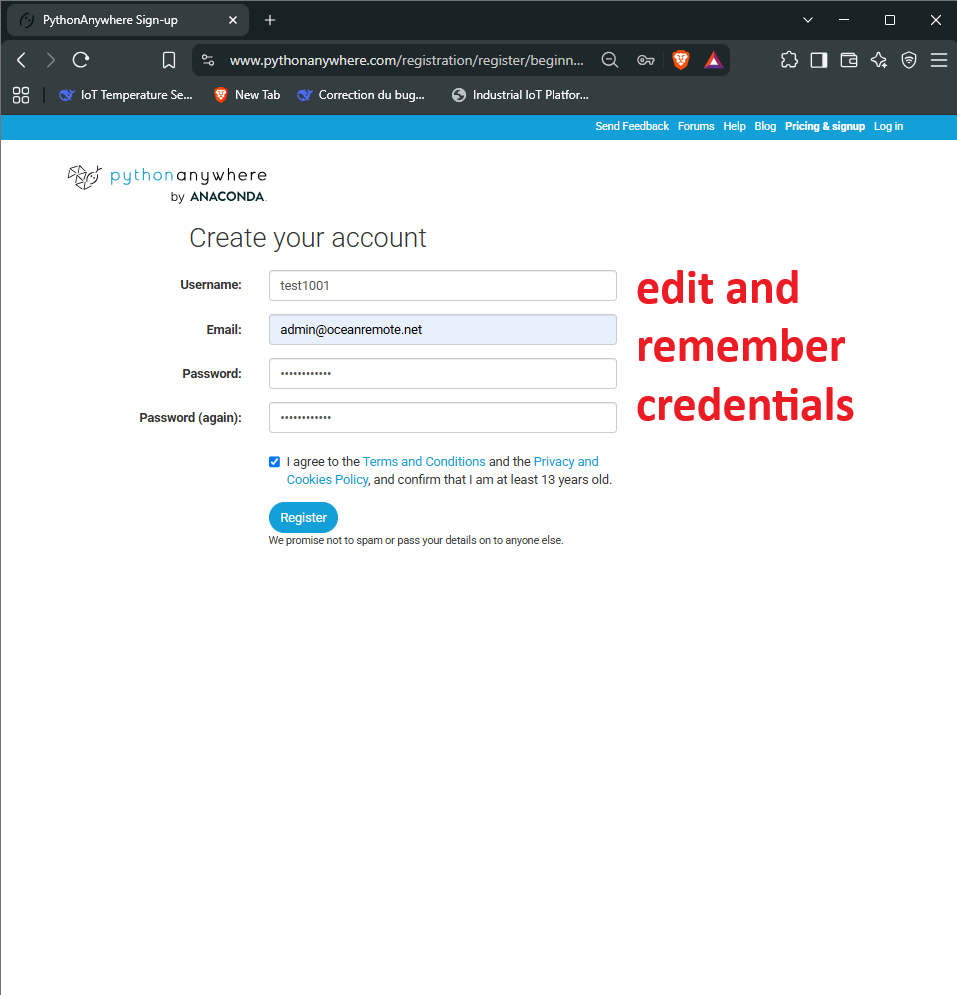
Set Your Credentials
Fill in your desired Username, Email, and Password. Remember these credentials because you will use this username to generate your unique web URL (e.g., yourname.pythonanywhere.com).
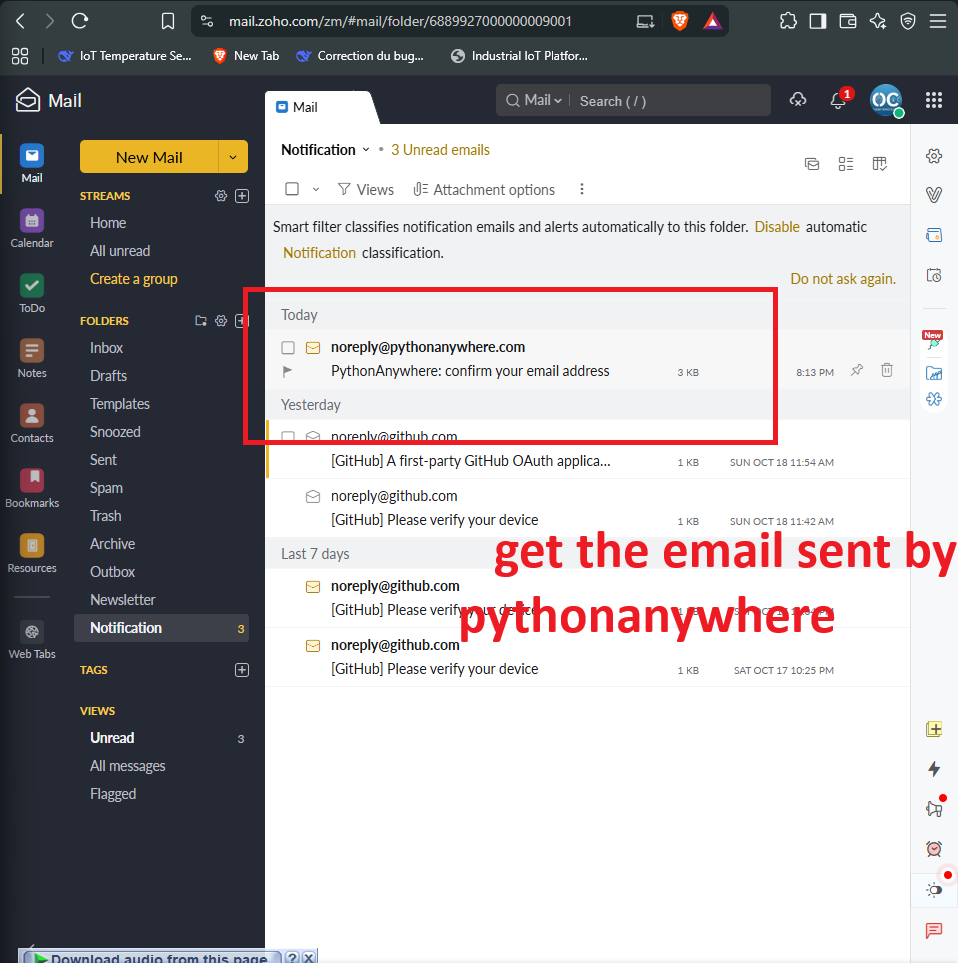
Verify Your Email
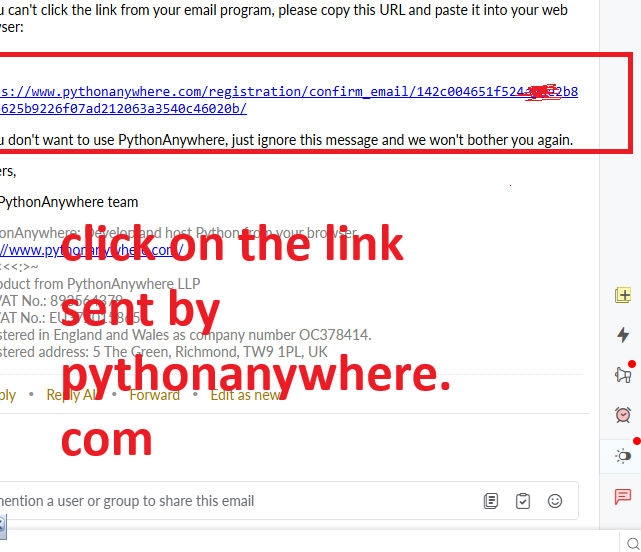
Check your inbox. PythonAnywhere will send you an activation email. Open it and click the verification link.
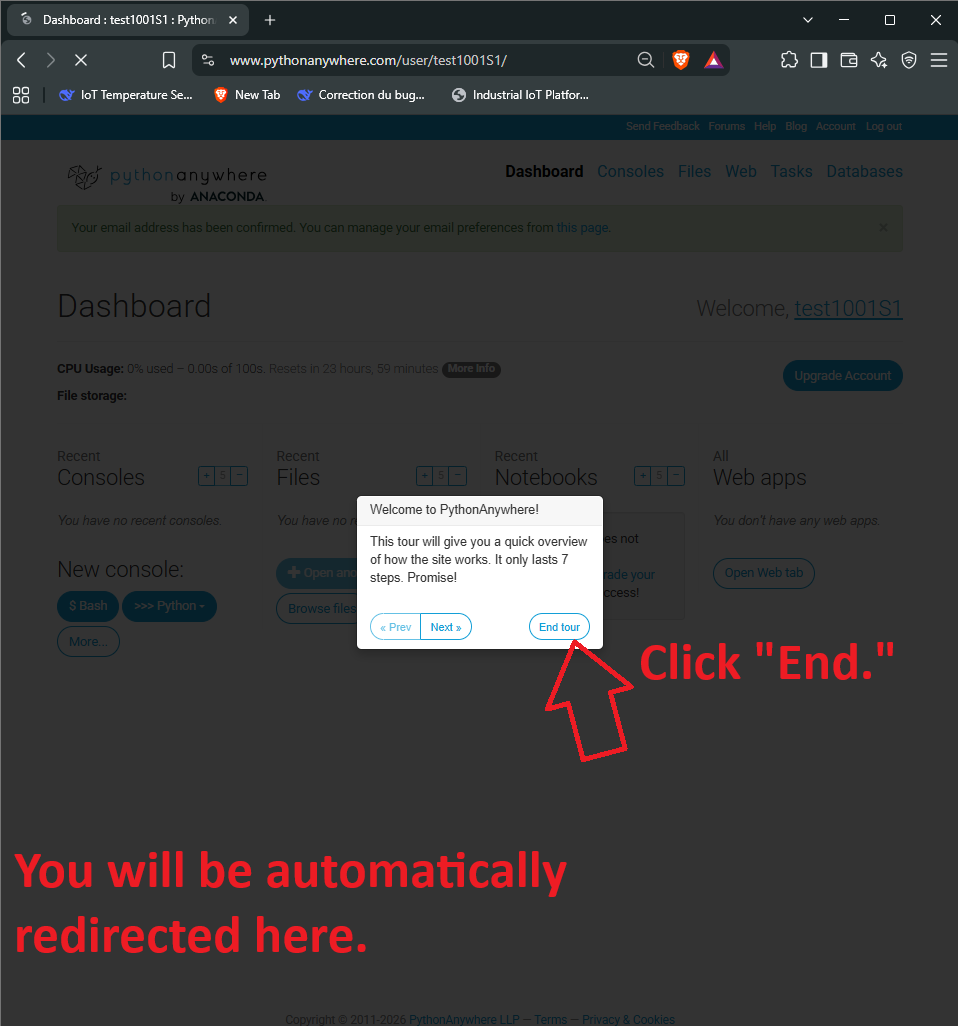
Complete the Tour
Once you click the link, you will be redirected to the PythonAnywhere dashboard. A welcome tour will start automatically.
End the Tour
You can skip the tour. Just click the "End Tour" button in the top right corner to access your dashboard cleanly.
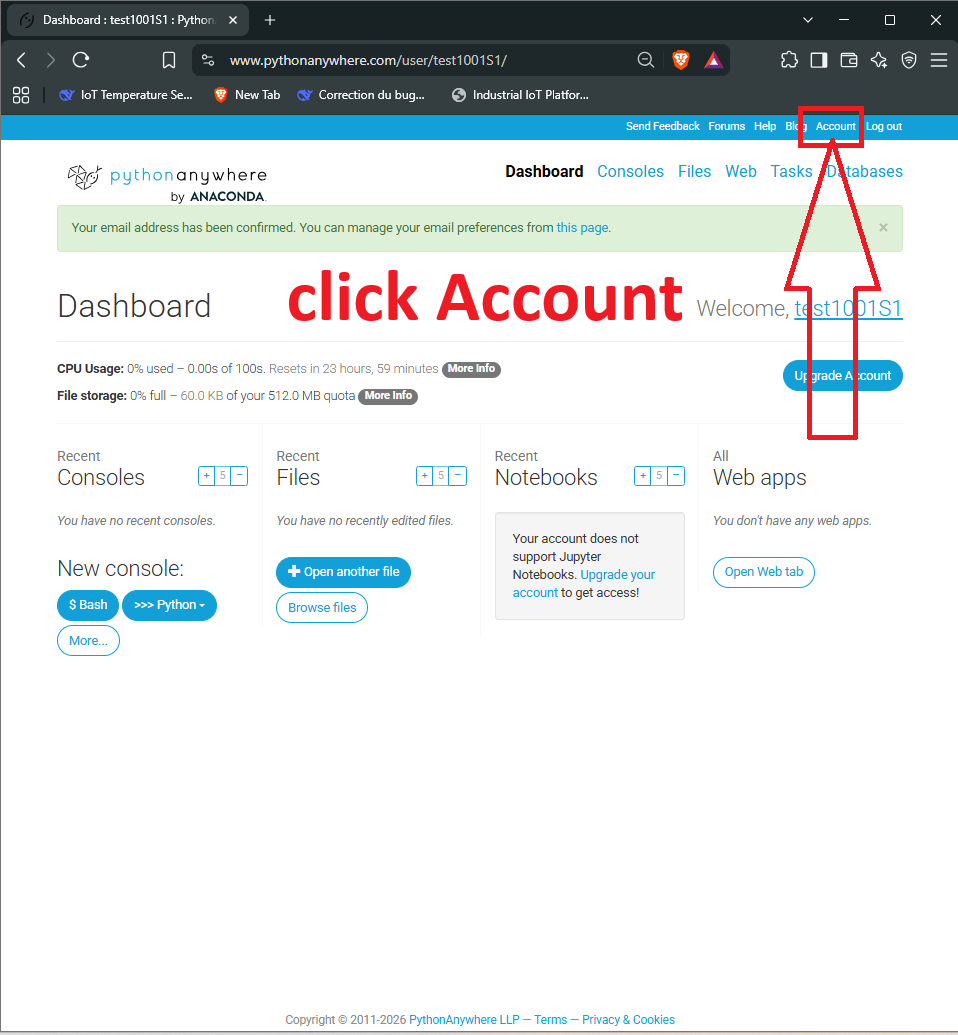
Access Your Account Settings
Look at the top right corner of the screen and click on "Account".
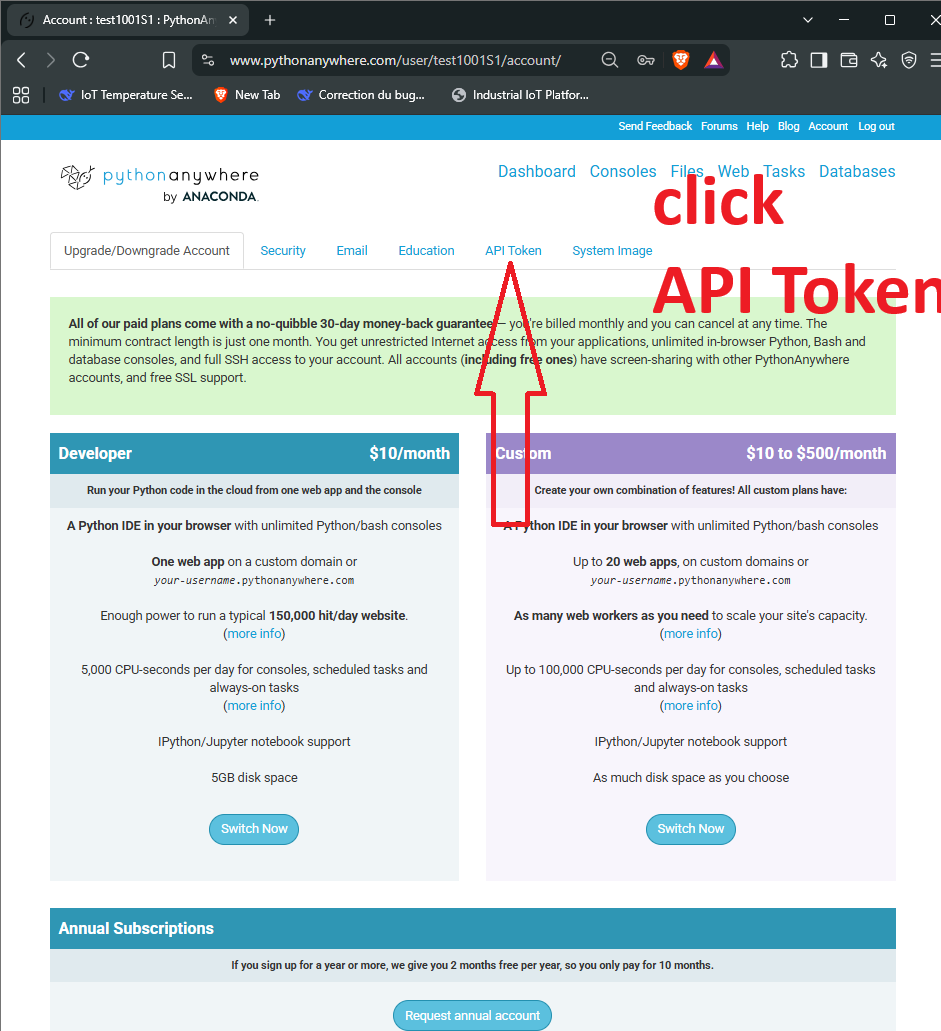
Navigate to API Token
On the Account page, click on the "API Token" tab. This is required for the auto-installer to configure your web app automatically.
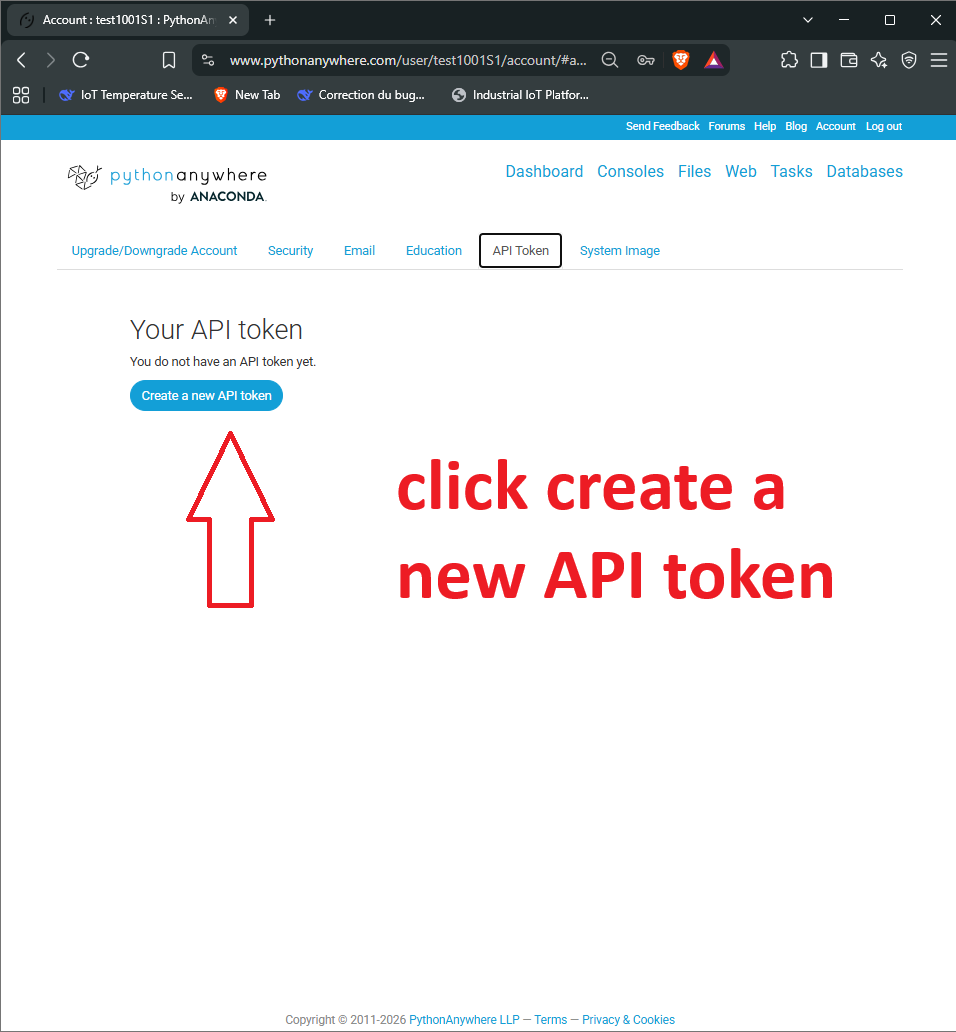
Create the Token
Click on the "Create a new API token" button. Copy the string of characters that appears. You will need this for the magic Bash command.
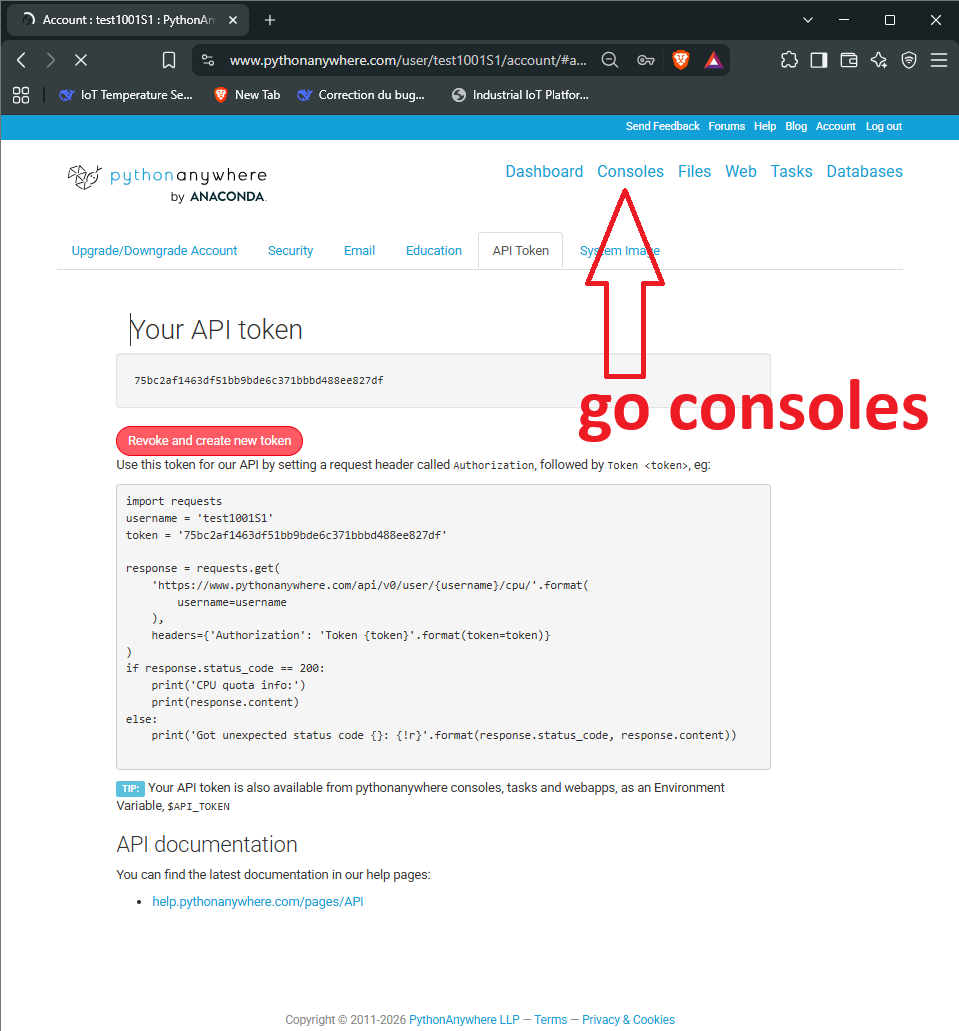
Go to Consoles
Now, click on the "Consoles" tab at the top of the page. This is where you will run the installation script.
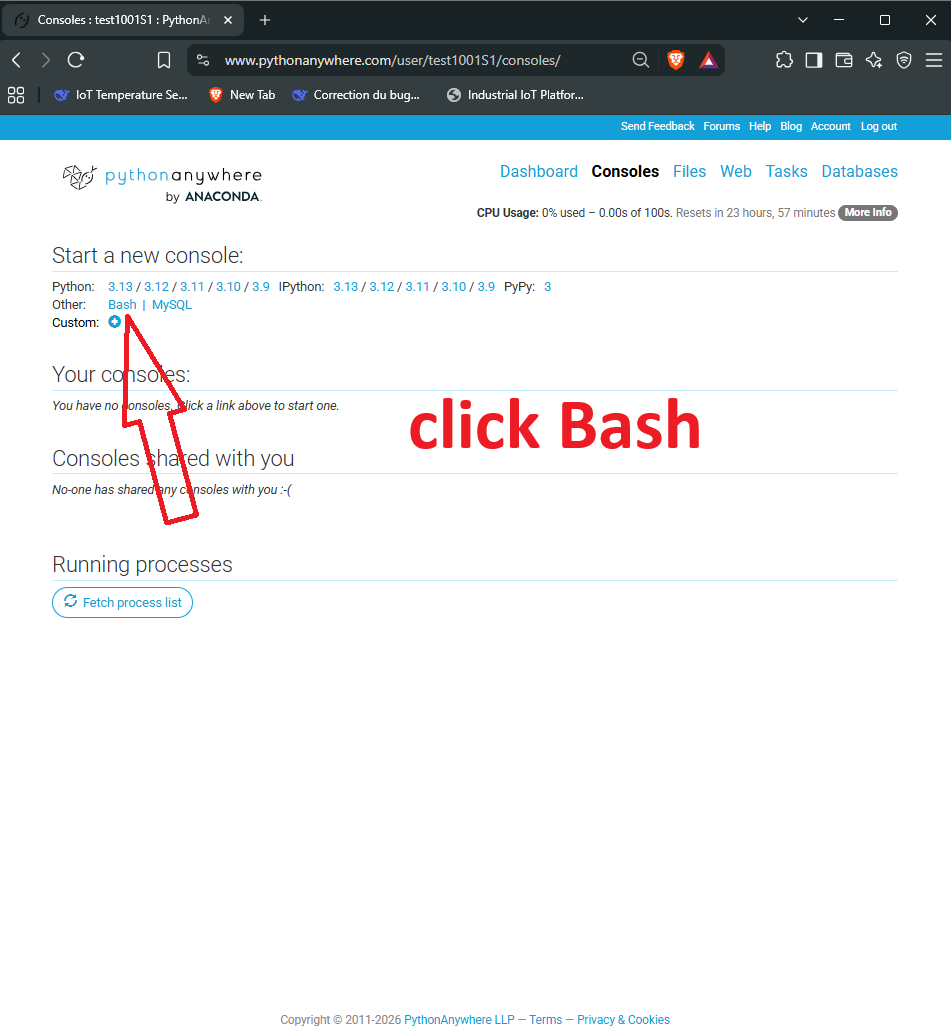
Open a Bash Console
Click on "Bash". A black terminal window will open. This is your server's brain.
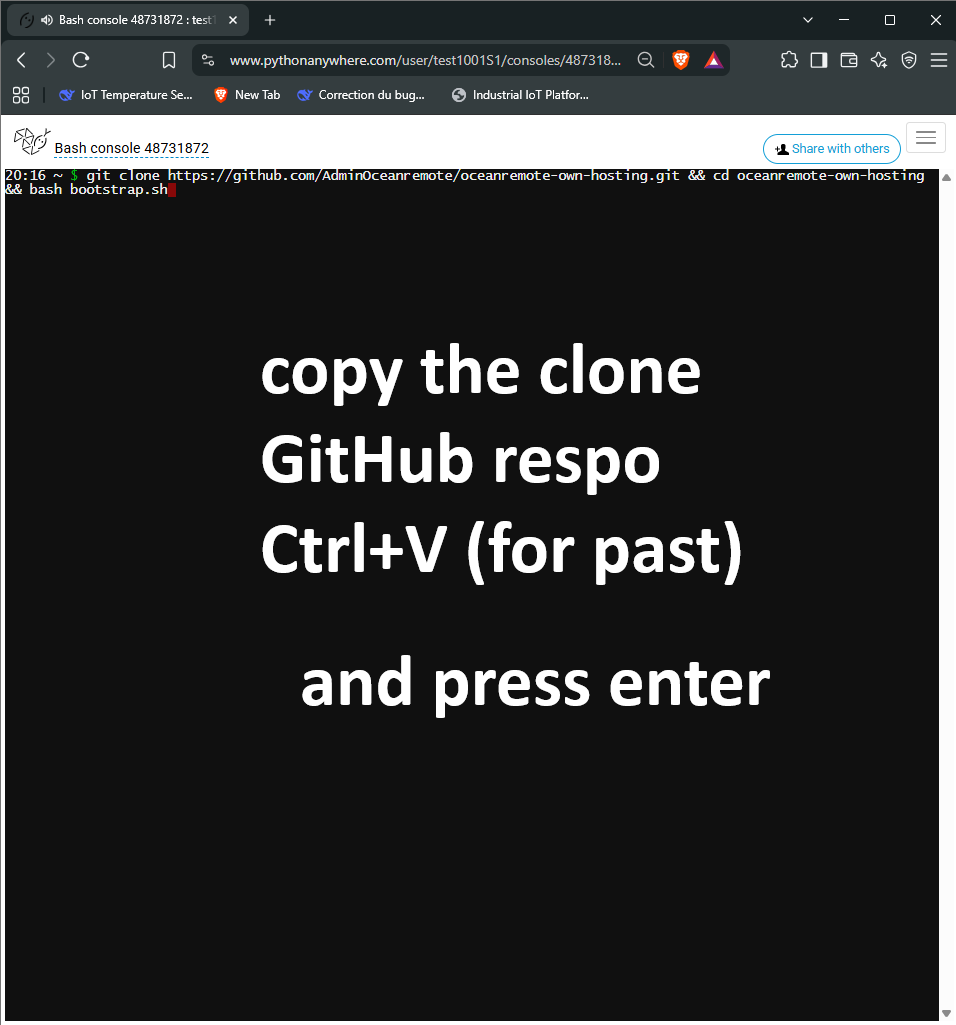
Run the One-Click Installer
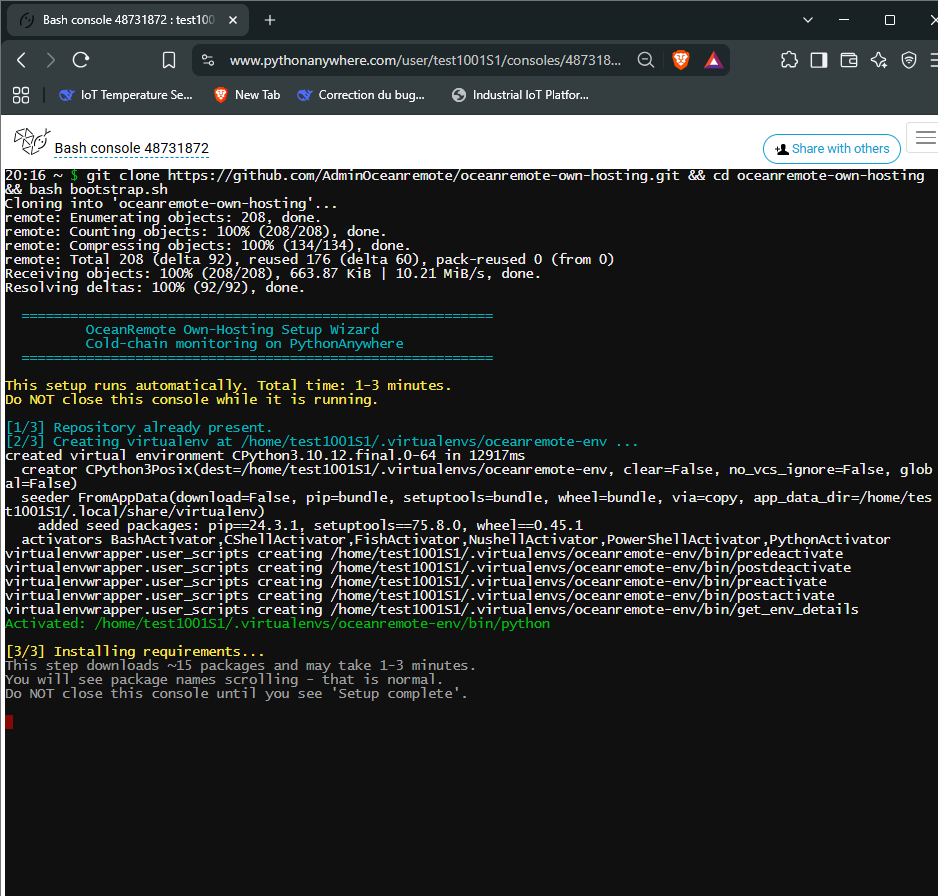
Copy and paste this exact command into the Bash console and press Enter. The script will clone the repository and automatically configure your server.
The Magic Happens
The script will now create a virtual environment, download all Python packages, and set up your database. Do not close the window.
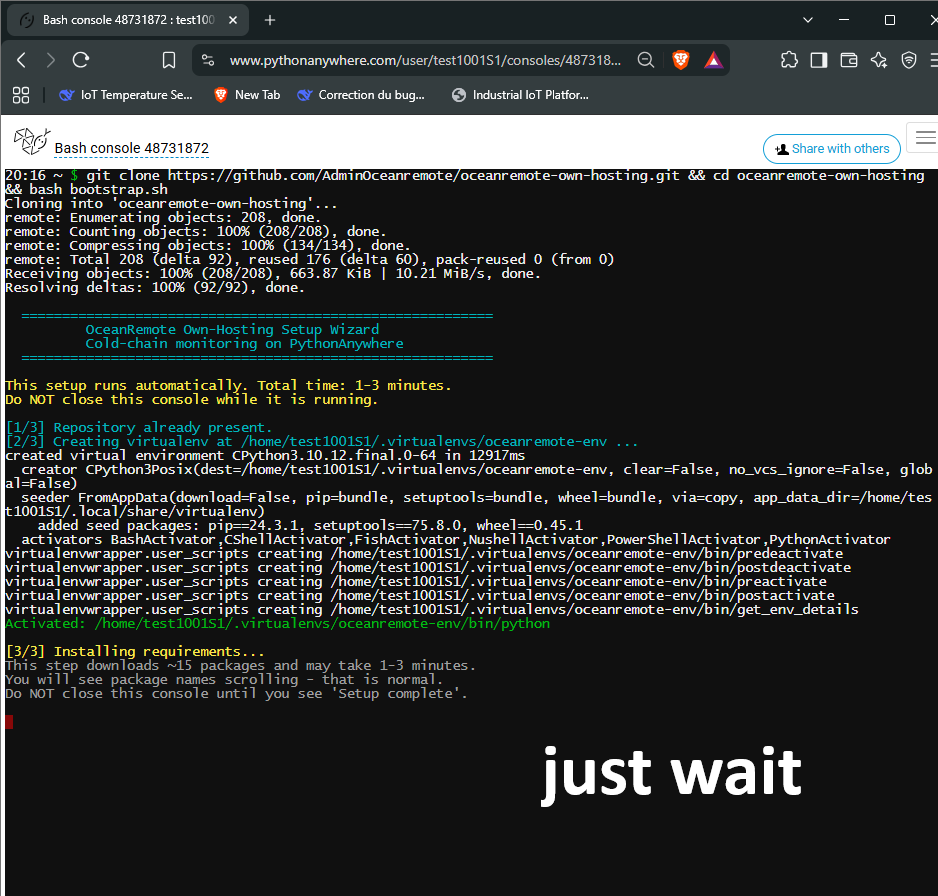
Installing Requirements
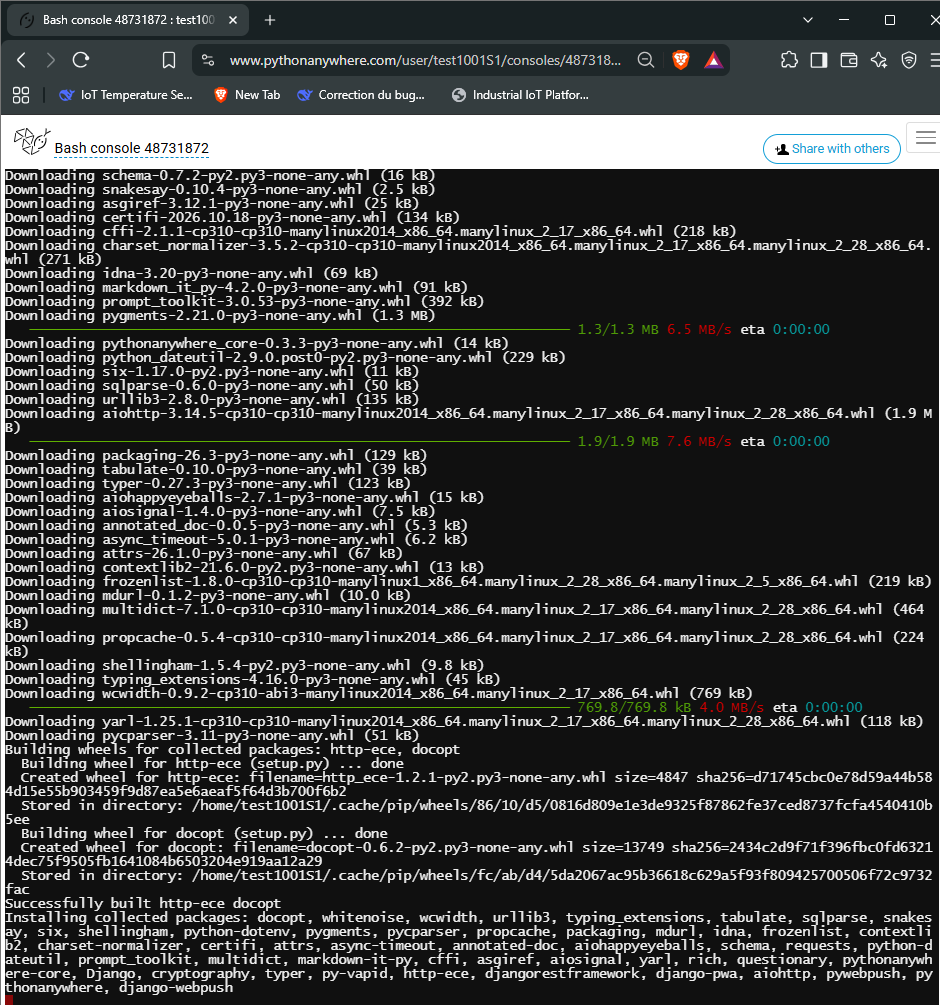
You will see text scrolling. It is installing Django, WebPush, and the exact requirements needed for the mobile app and the desktop app.
Create Your Admin Account
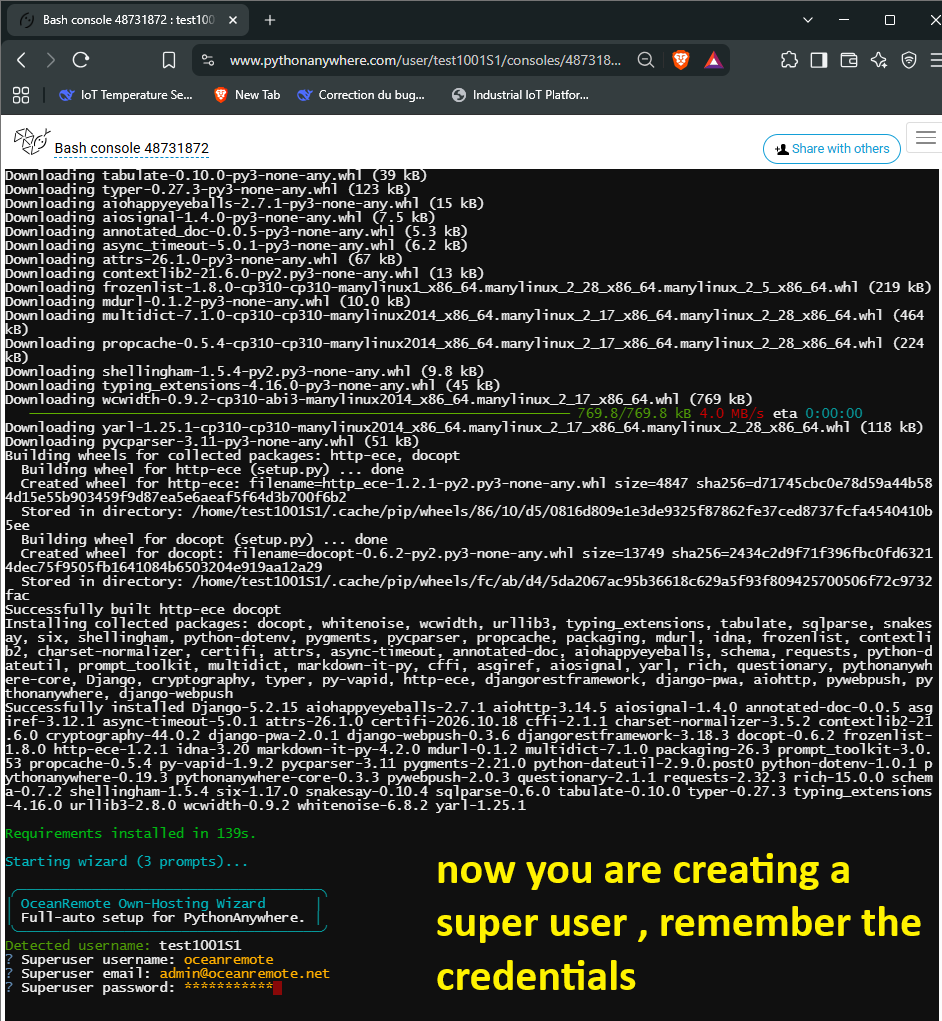
Halfway through, the script will ask you to create a superuser. Type a username, your email, and a password. Remember this password, it is your key to the server.
Your Server is Ready
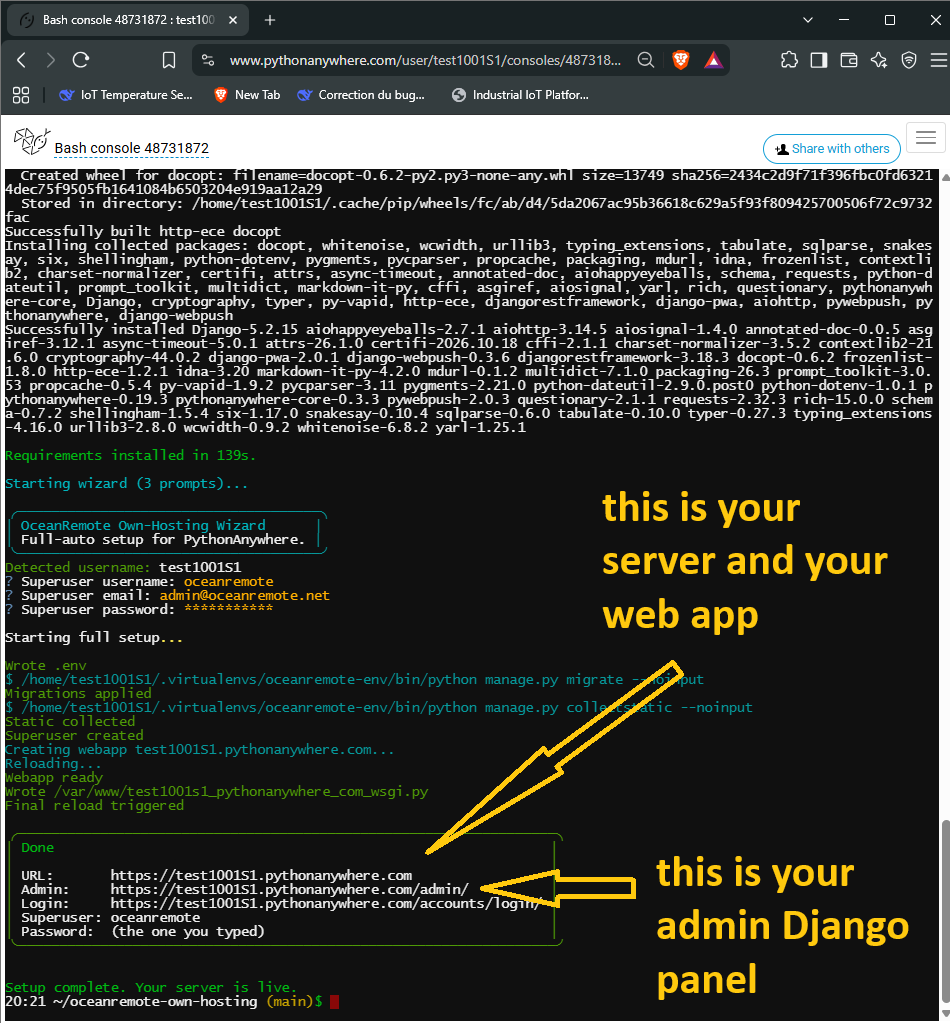
The script will print a success message with your Web App link. It will look like https://yourusername.pythonanywhere.com.
Open Your Web App
Click the link printed in the console (or go to your Web tab on PythonAnywhere). You should see the OceanRemote login page.
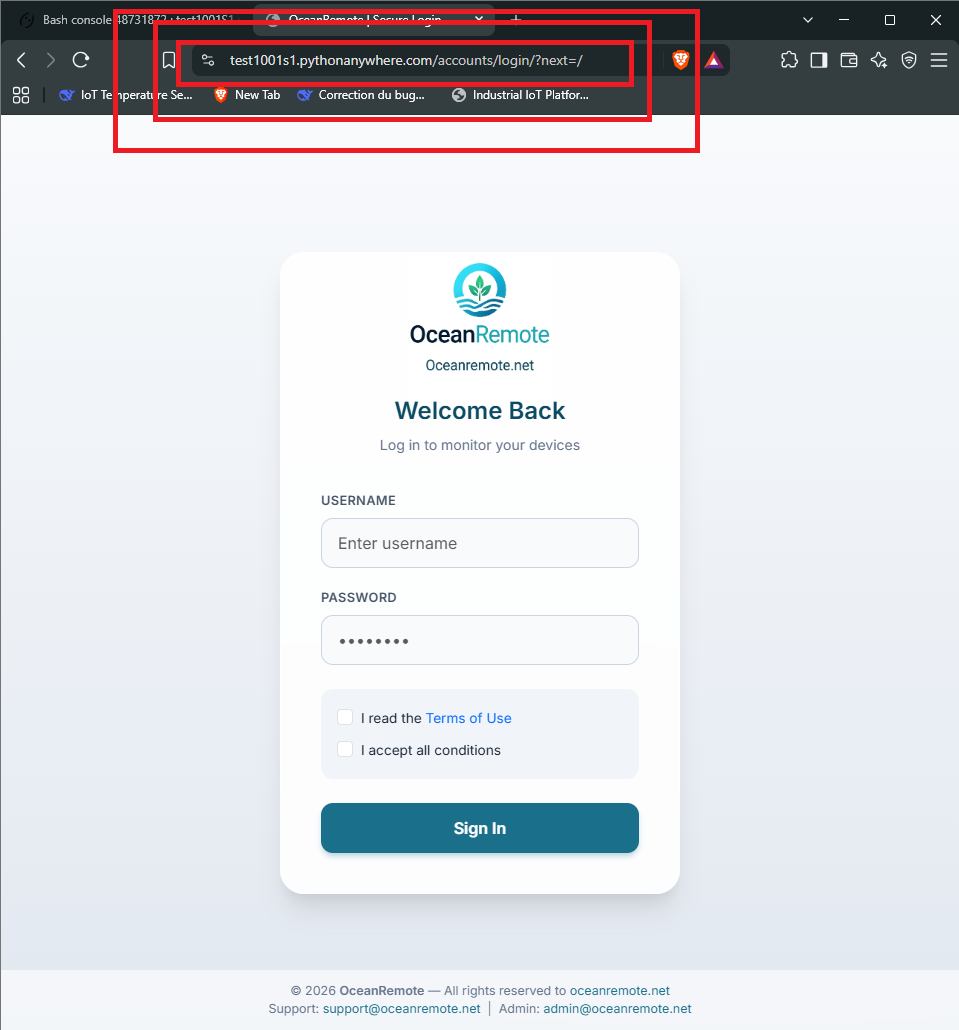
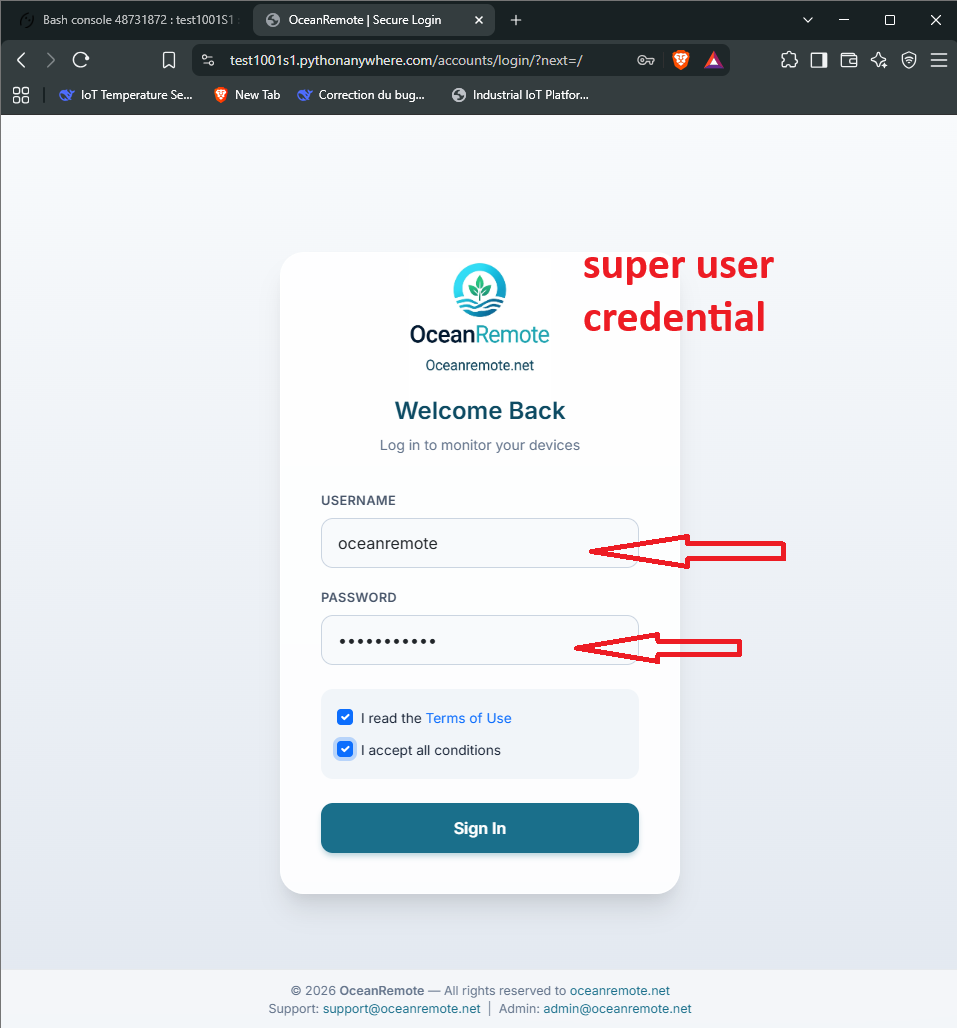
Log In to Your Server
Enter the superuser credentials you created in Step 14. You are now looking at your very own IoT dashboard!
Part 2: Desktop App Installation
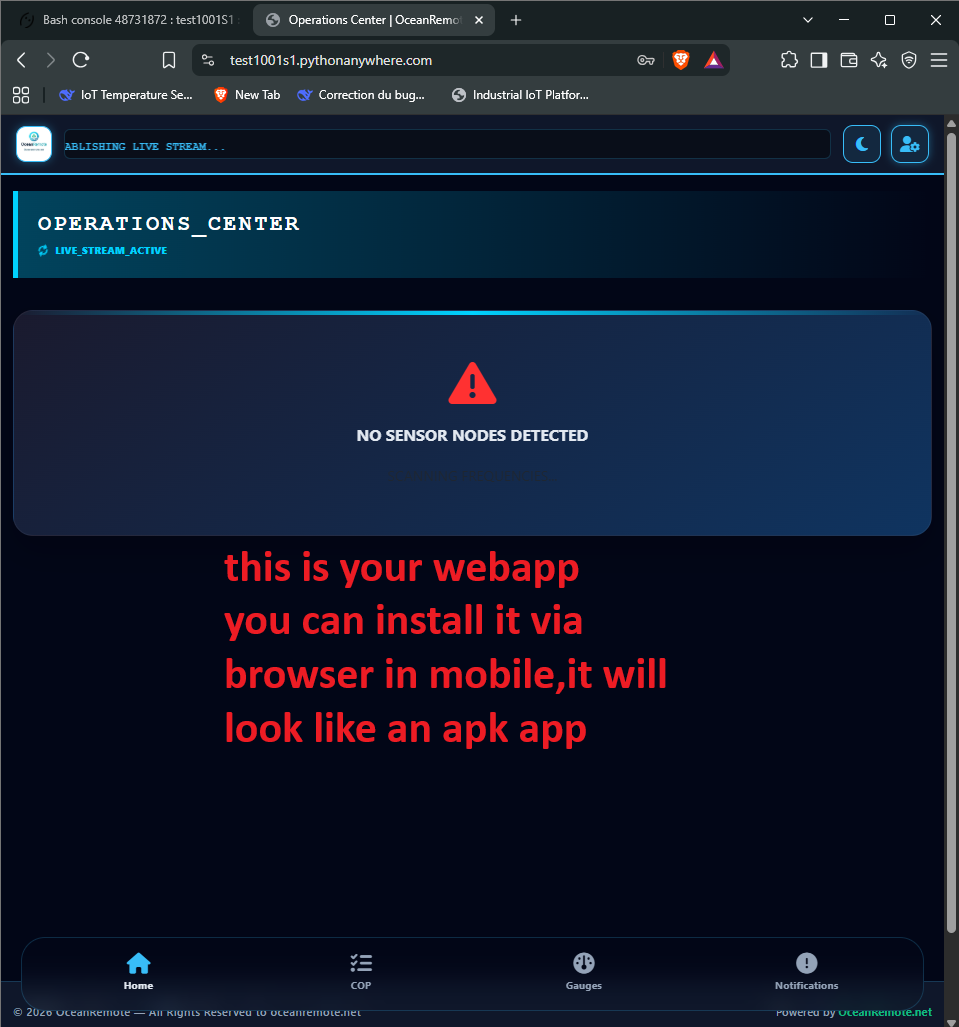
The Mobile Web App (PWA)
Your server is fully responsive. You can open it on your phone and click "Add to Home Screen". It will look like a native app and even send you push notifications if a temperature goes out of bounds.
Download the Desktop App
For advanced features like firmware generation, PDF reports, and custom calibration, download the Windows Desktop App. You can also review the full WPF source code on our GitHub repository.
⬇ Download OceanRemoteMonitor_Setup.exe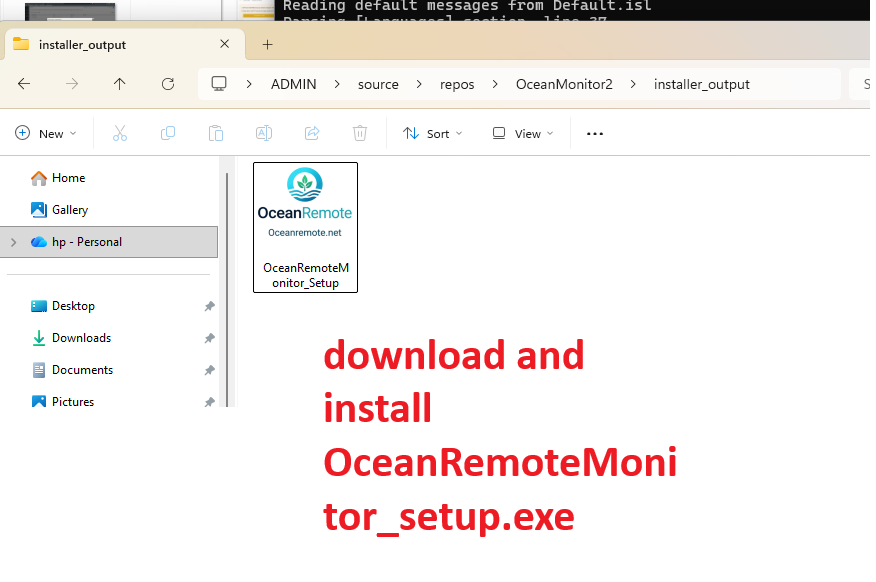
Install and Launch
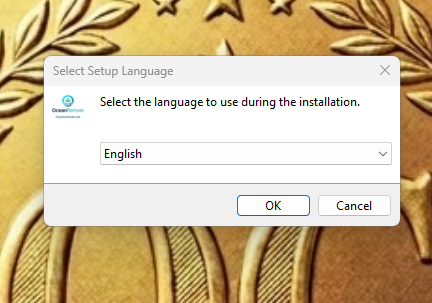
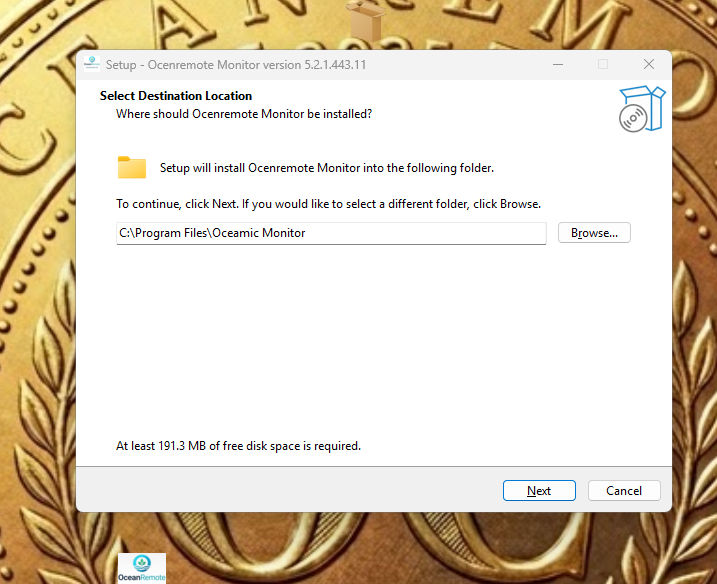
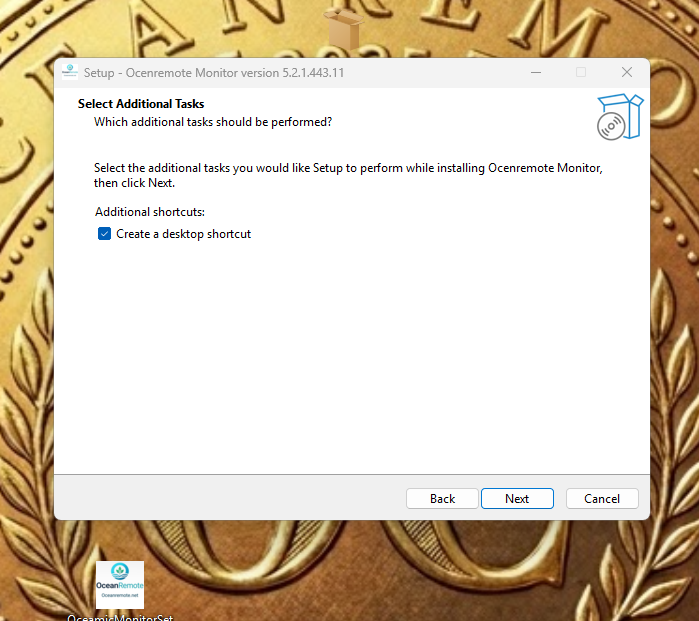
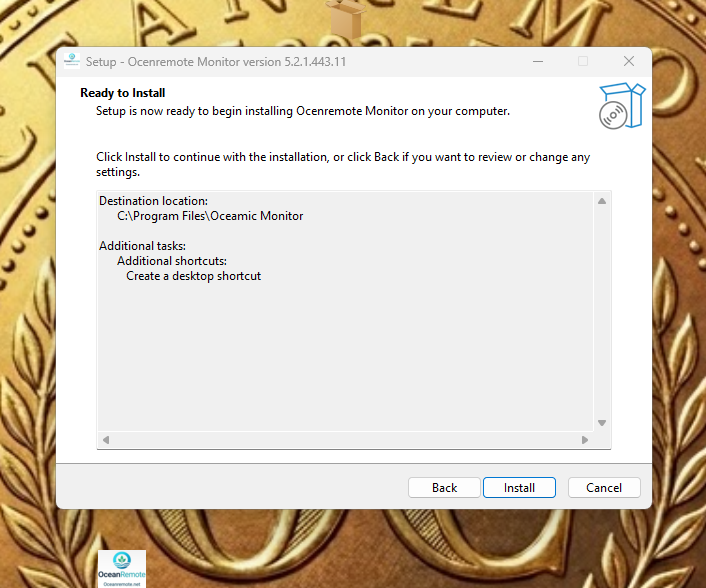
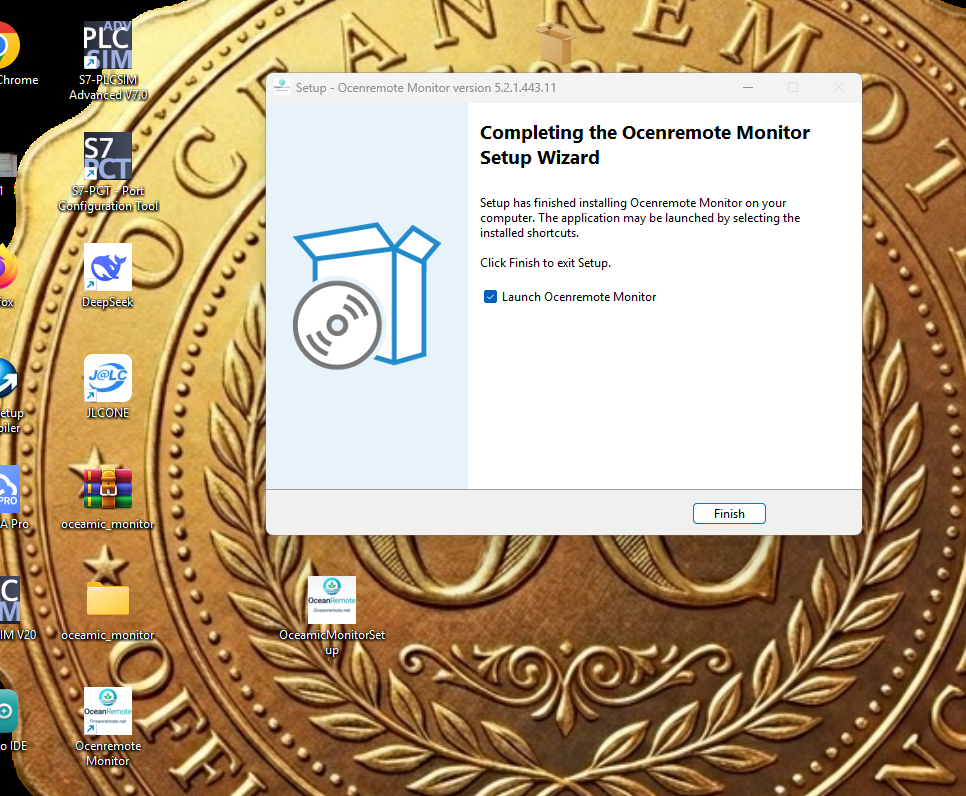
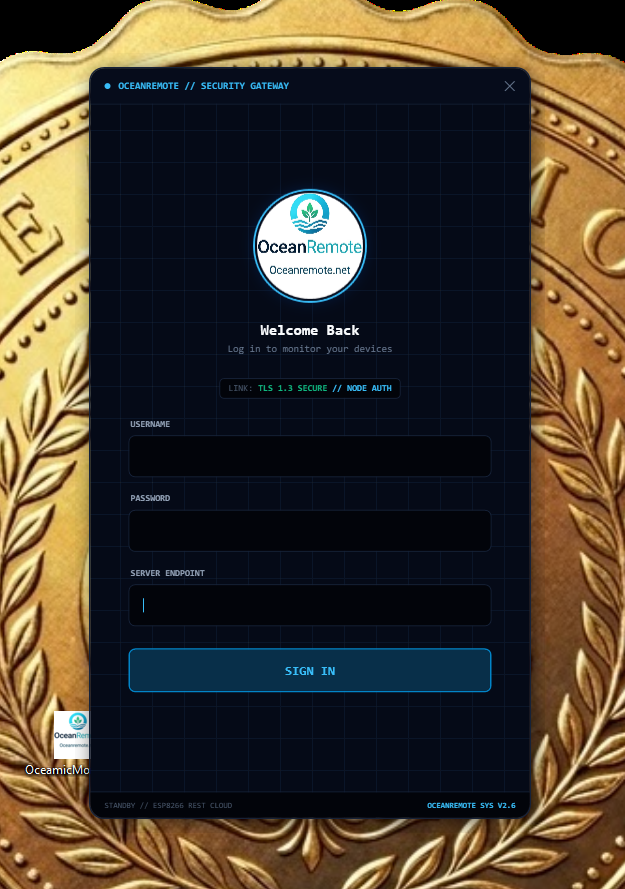
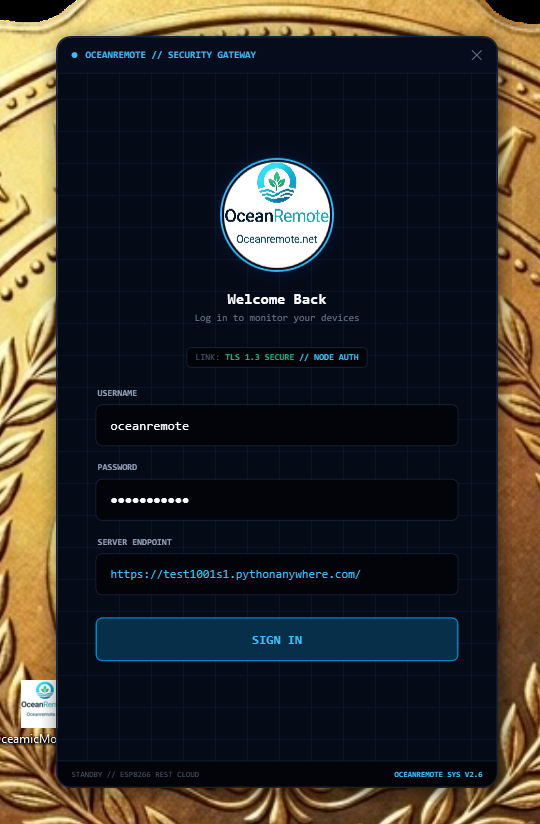
Run the installer. Choose your language, click Next, and Install. Launch the app. You will see a dark SCADA login screen. Enter your Server URL (e.g., https://your_username.pythonanywhere.com) and your superuser credentials.
Generate Custom Firmware
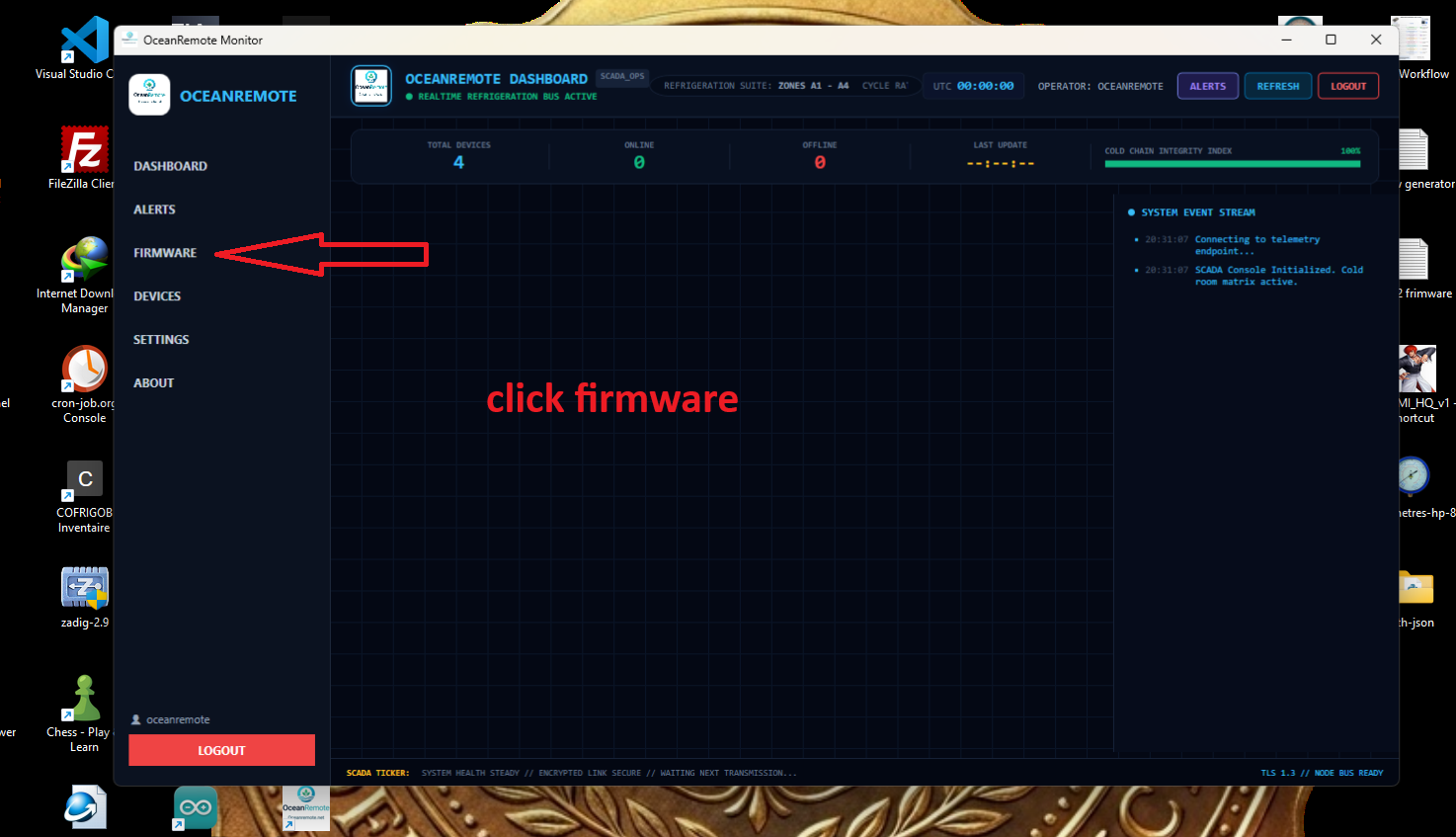
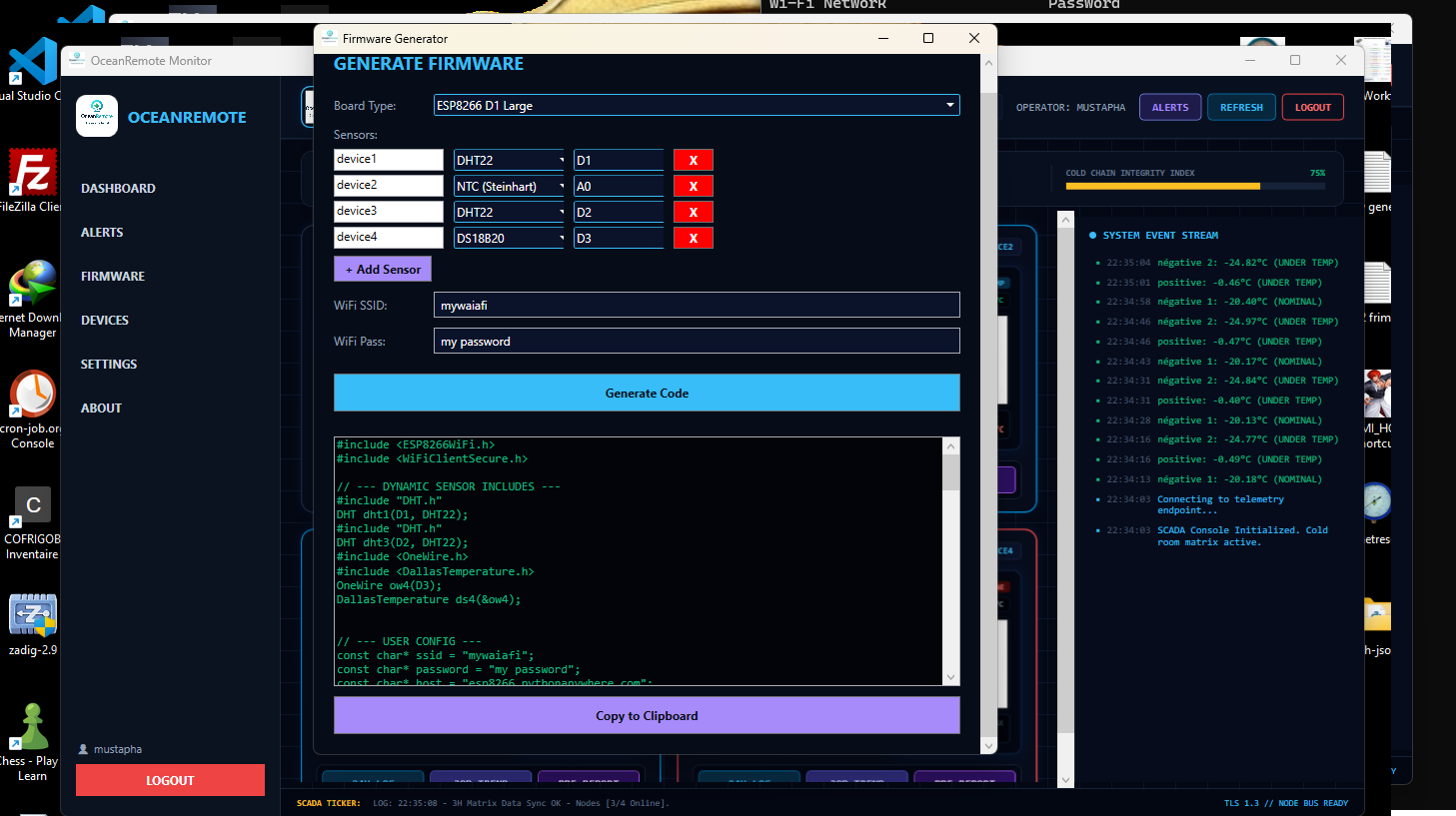
Click on FIRMWARE on the left menu. Select your board (ESP32, ESP8266, Pico W). Click "+ Add Sensor" to add as many sensors as your board supports. Fill in your WiFi credentials. Click Generate Code and copy it.
Part 3: Flashing Hardware
Flash the Board
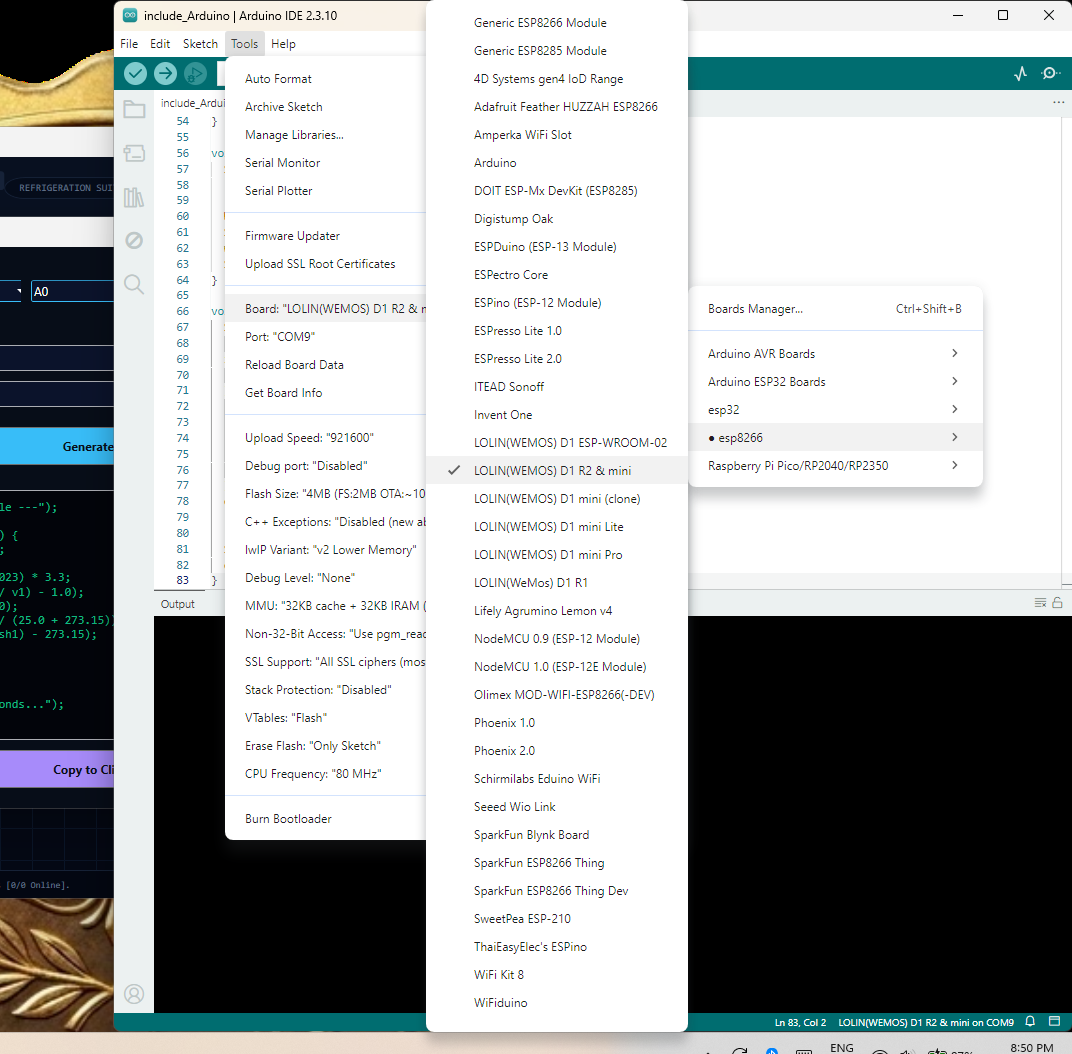
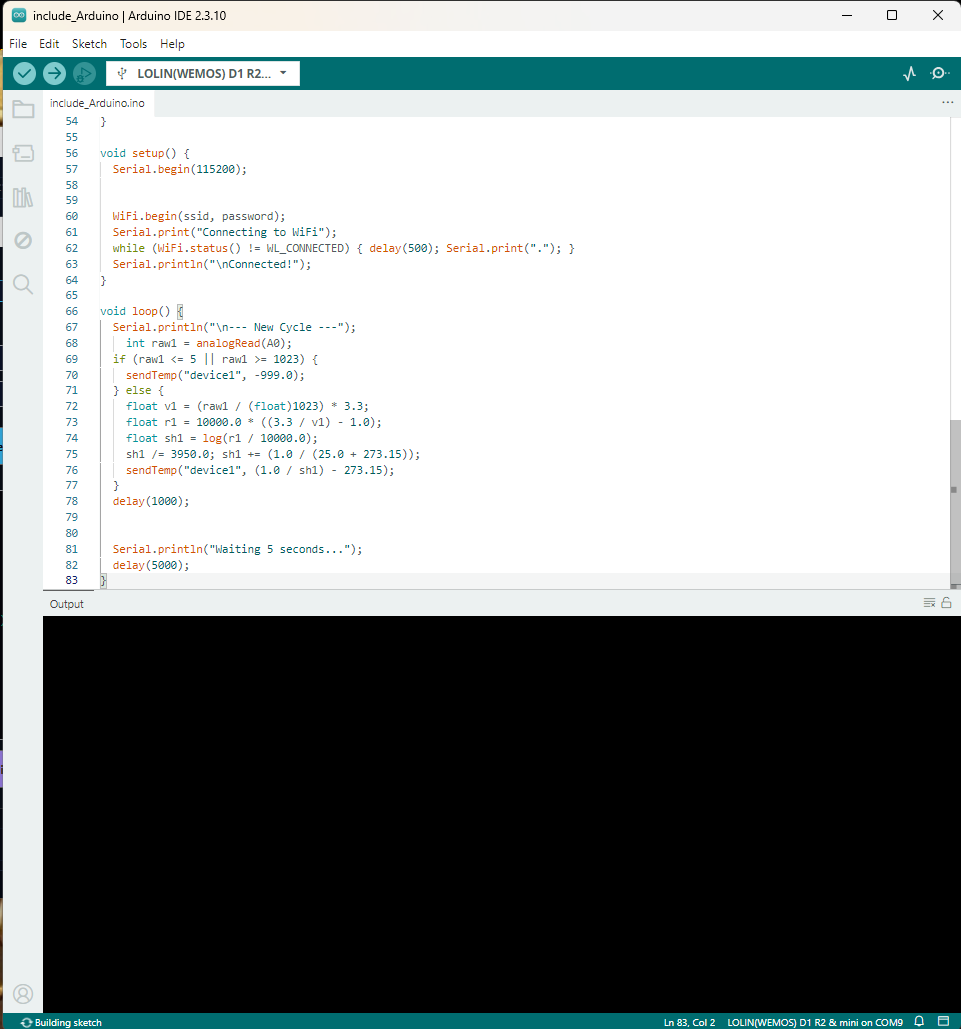
Open Arduino IDE. Select your board from Tools > Board (I selected ESP8266 D1 Large setup in this example). Paste the firmware you copied. Click the Upload button (arrow).
Device Connects Automatically
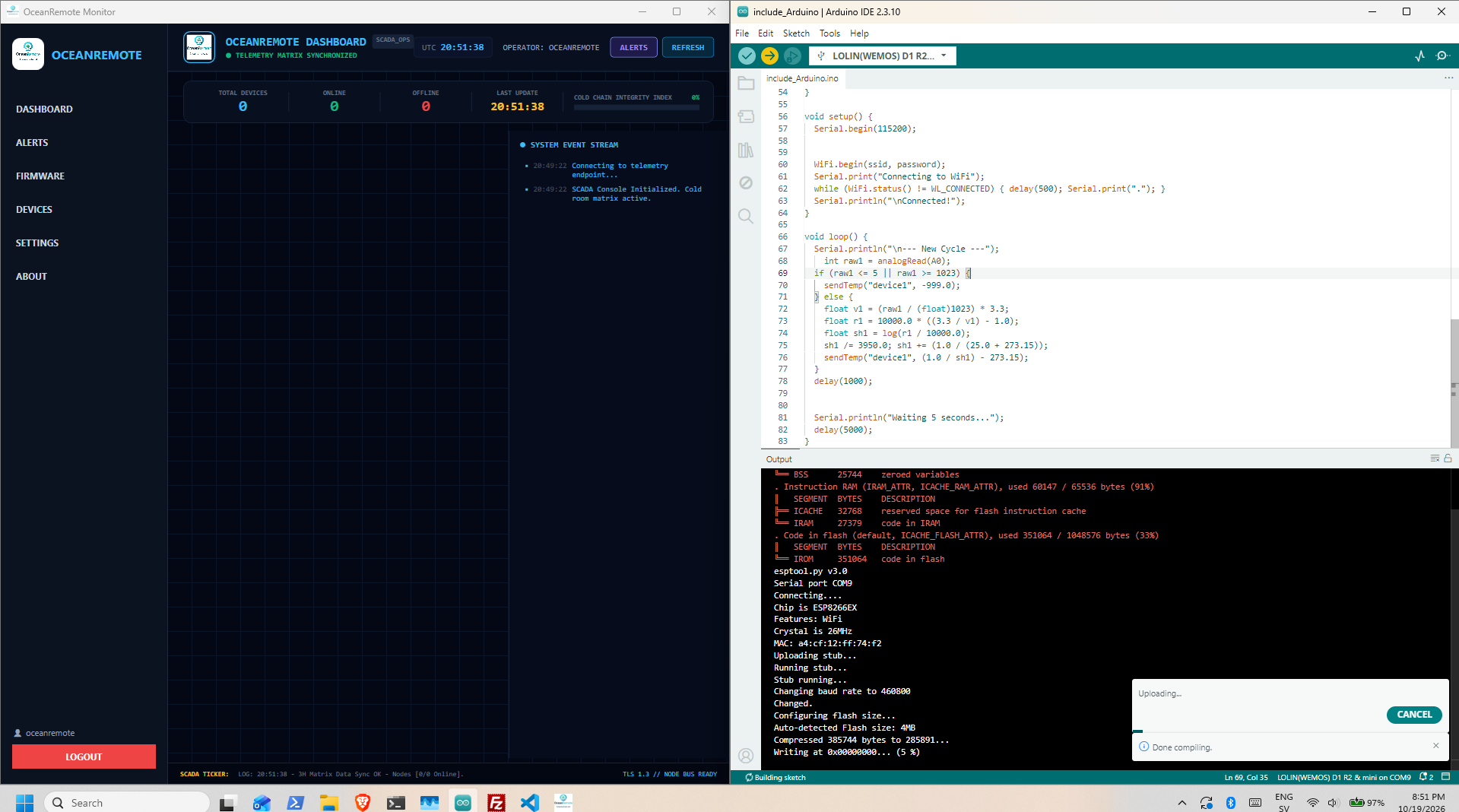
Wait for the upload to complete. The ESP will connect to your WiFi, handshake with your PythonAnywhere server, and instantly appear on your dashboard with live data.
Part 4: Monitoring & Features
Dashboard Overview
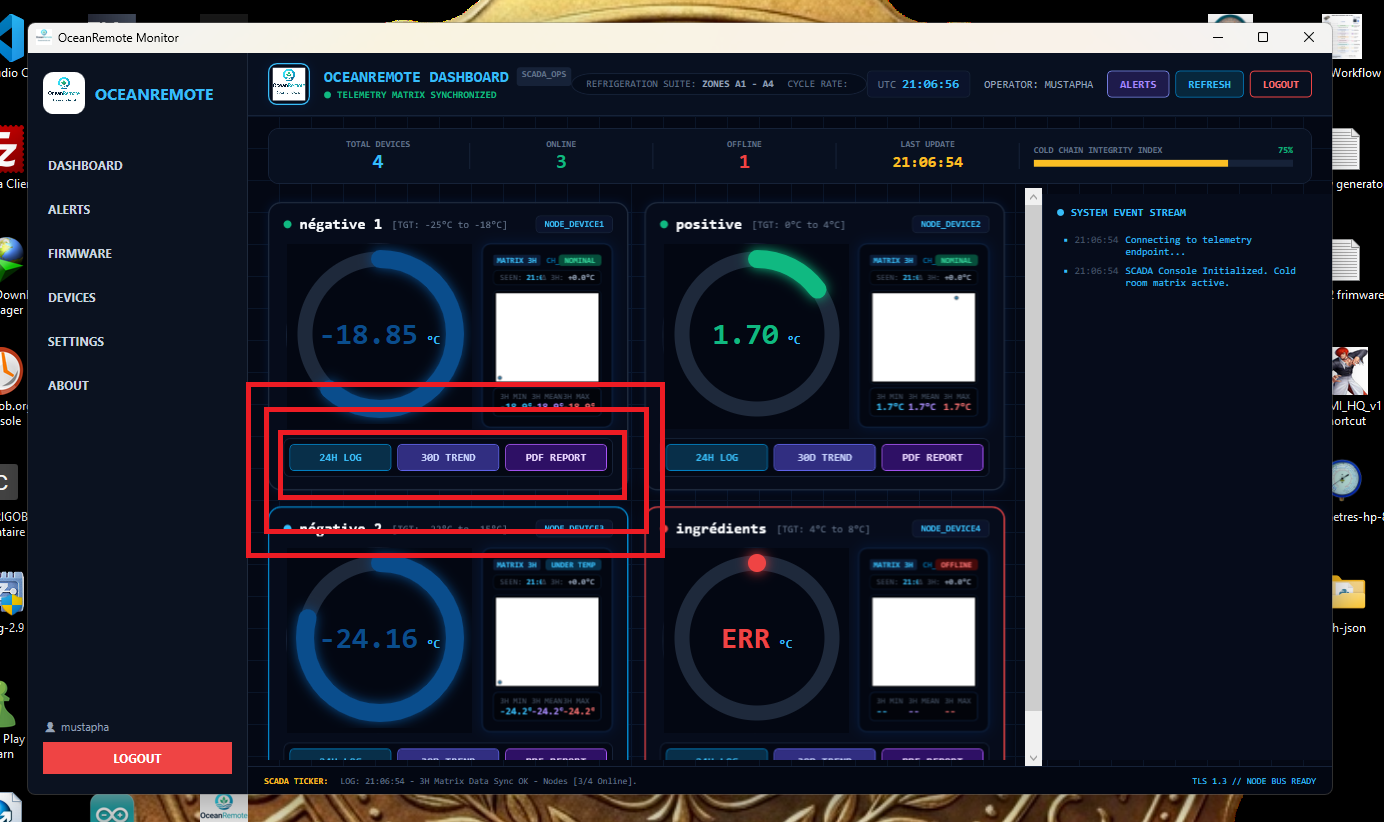
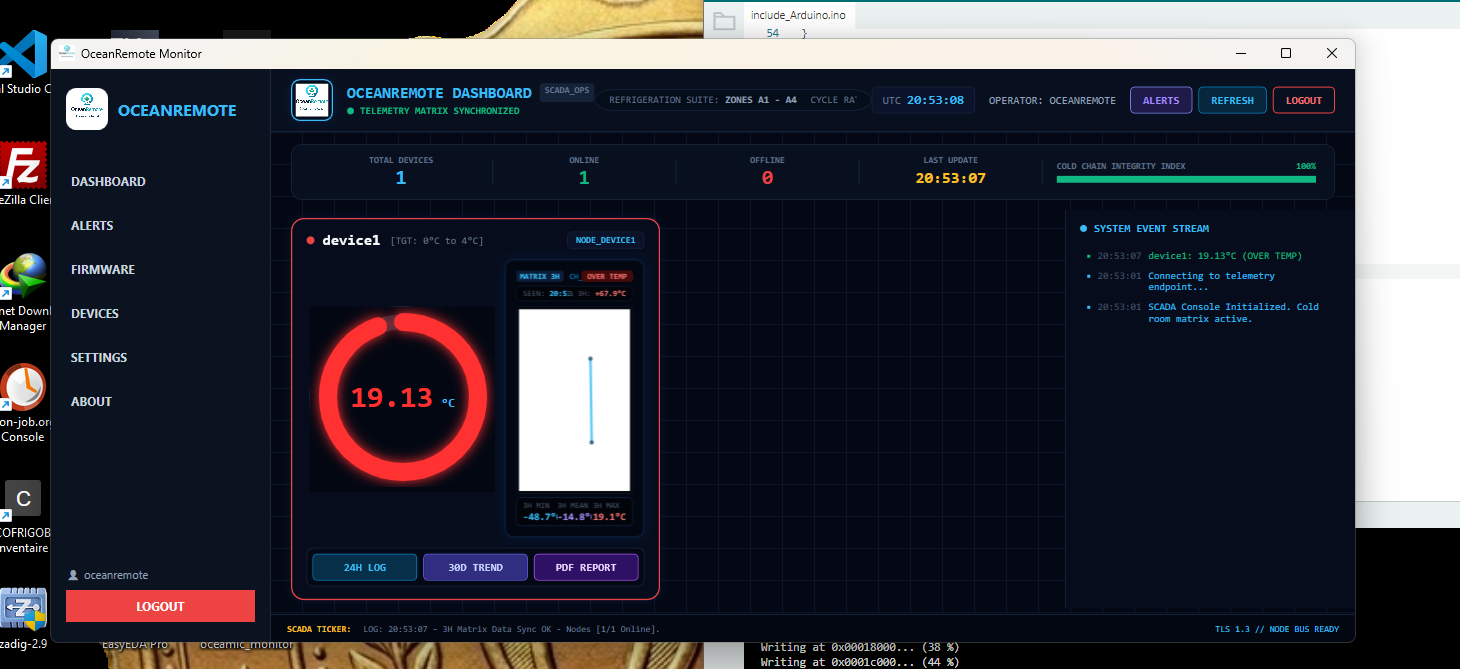
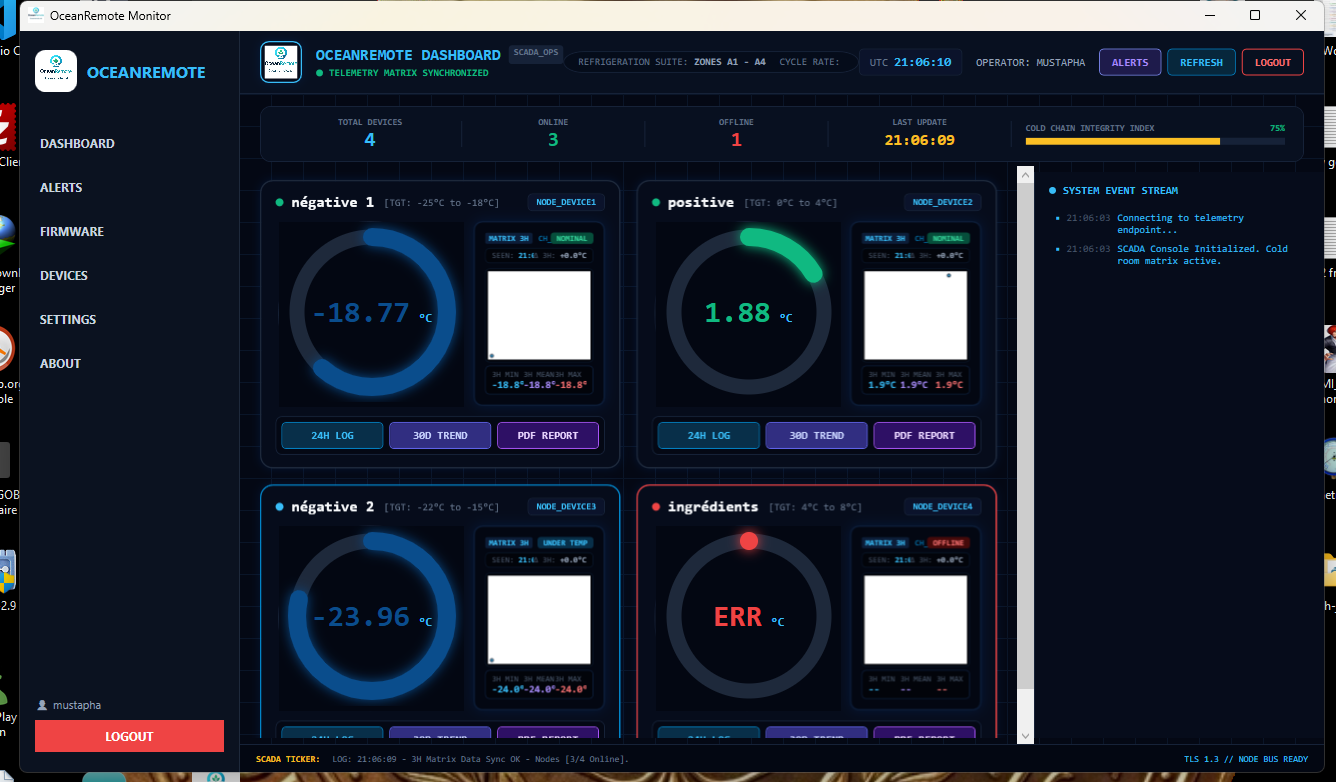
Your live devices will show as green (Nominal) or red (Error/Offline/hot temperature). If you have a sensor declared in the firmware but not wired, it will send an error state so you know it's missing.
Device Management
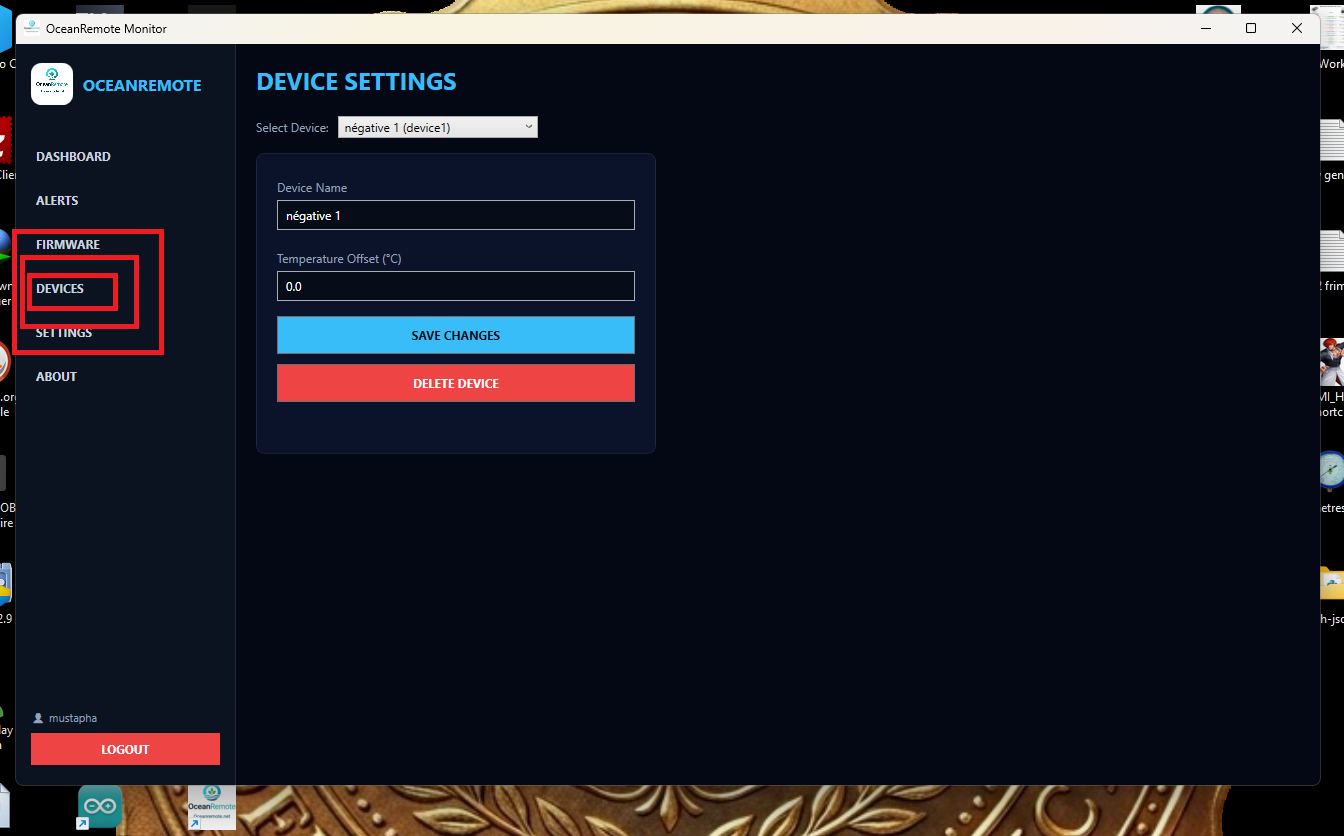
In the DEVICES menu, you can rename your nodes, adjust the temperature offset (calibration), or delete dead devices. Note: Live devices sending data cannot be deleted as they will reappear on the next ping.
Historical Charts & PDF
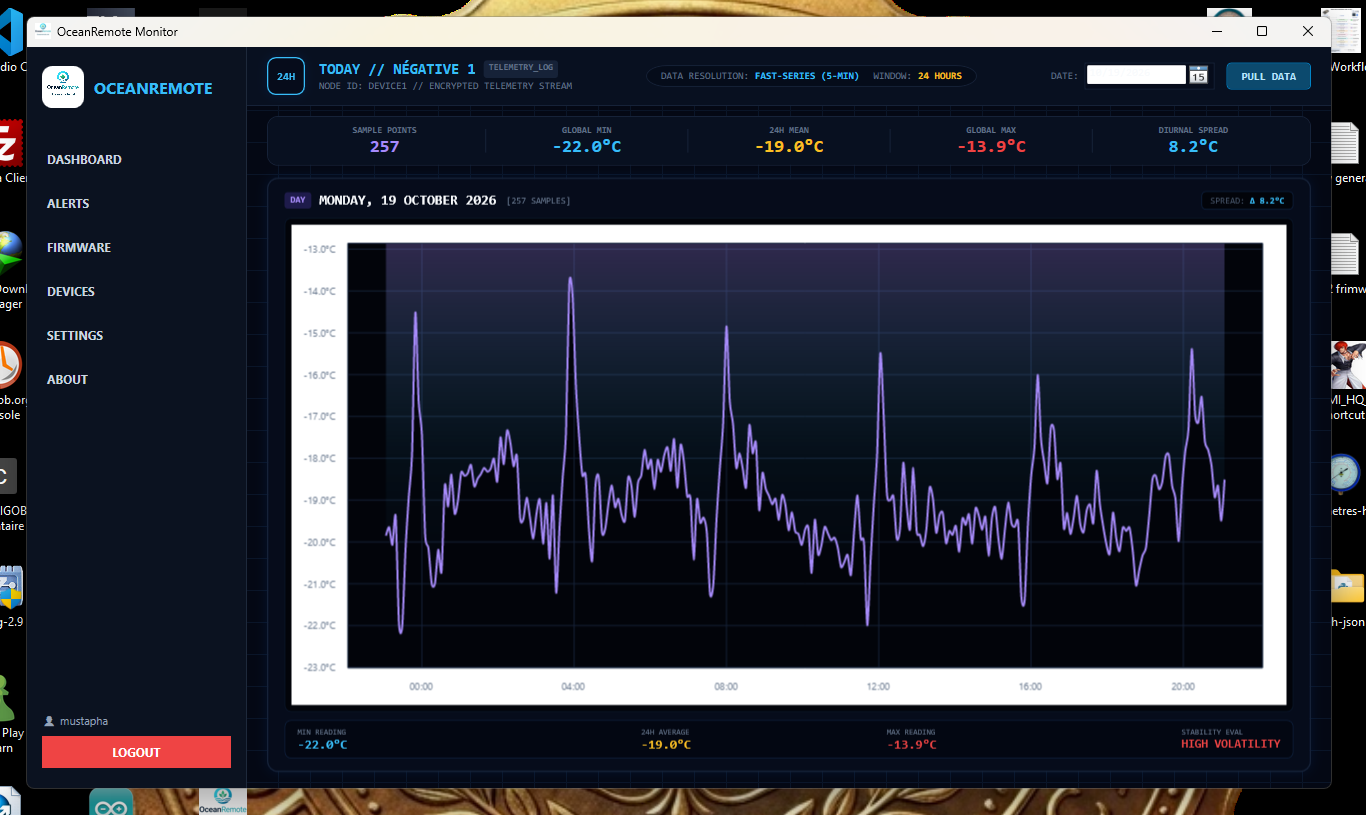
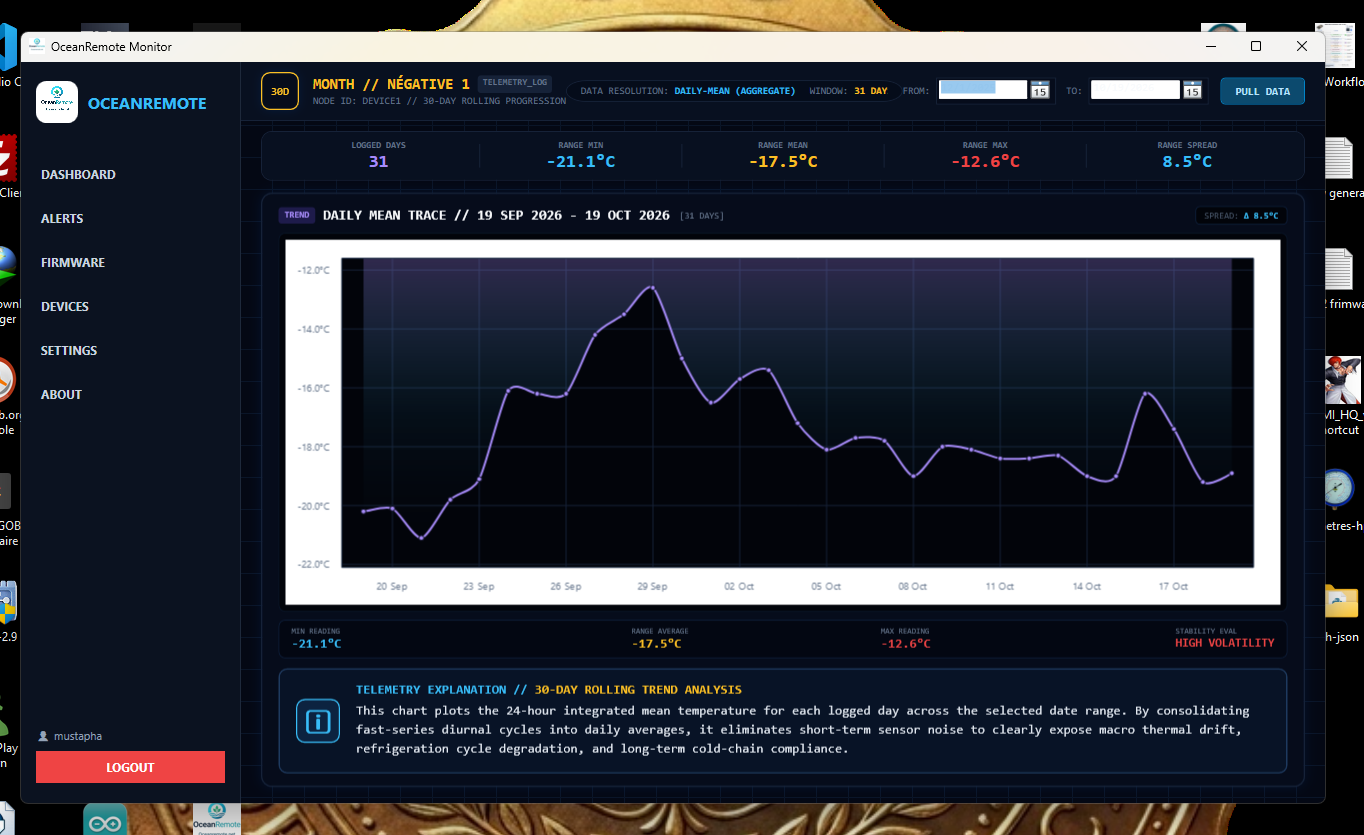
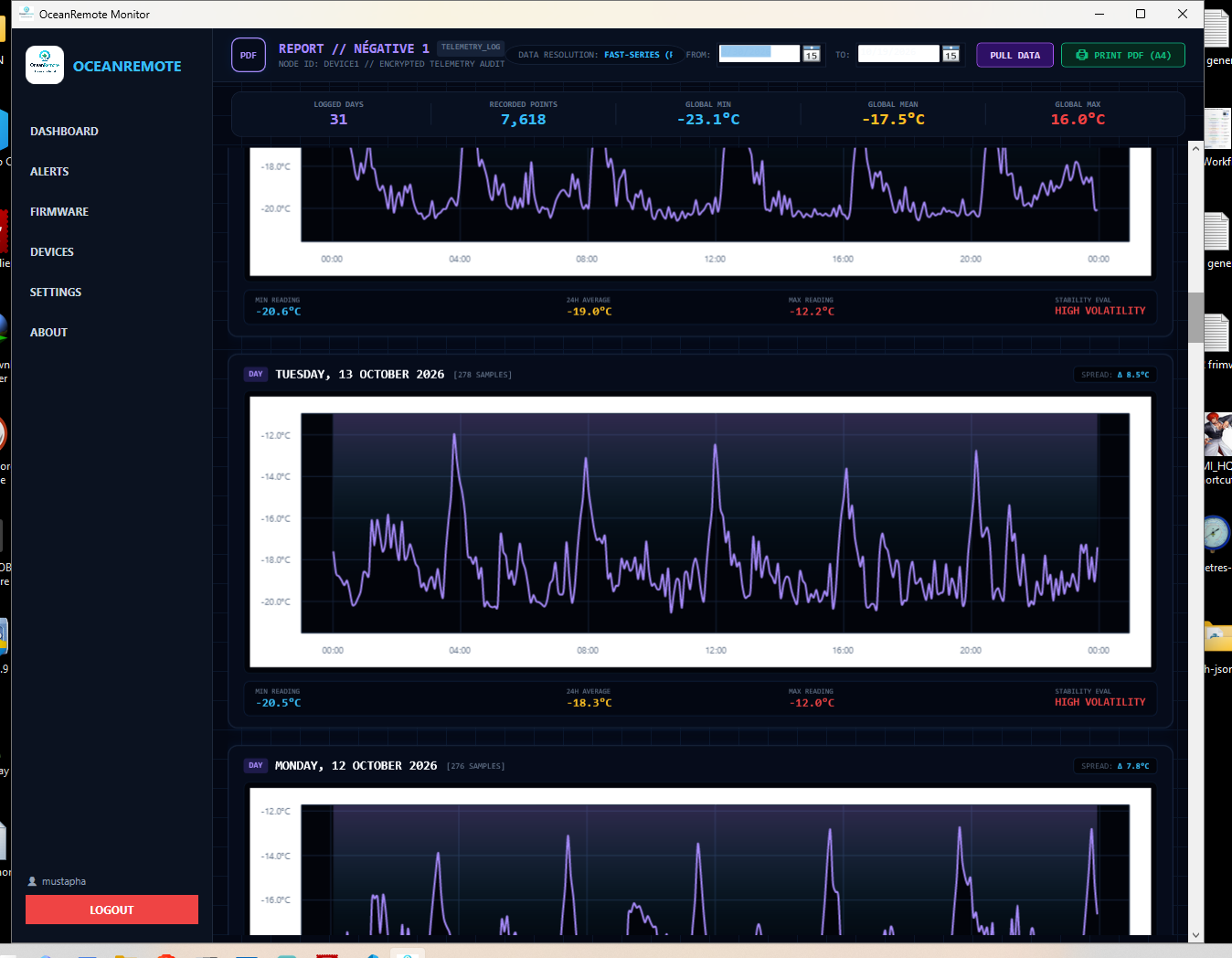
Click any device to view its history. You can choose 24H Log, 30D Trend, or PDF Report. In the PDF mode, use the calendar (which is now dark mode!) to select a date range and print a formatted A4 document with 4 charts per page.